
Adjust GIF Frame Duration Like a Pro | Cliptics
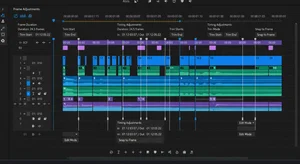
Frame duration is one of those things that separates amateur GIFs from professional looking ones. You can have great source material, but if the timing's off, the whole thing feels wrong. I've spent way too many hours tweaking frame delays by tiny increments to get animations to feel just right.
Most people don't even know frame duration is adjustable. They create a GIF and whatever timing it exports with is what they're stuck with. But being able to control exactly how long each frame displays gives you so much creative control over pacing and feel.
What Frame Duration Actually Means
Every frame in a GIF can have its own delay before the next frame shows. This delay is measured in hundredths of a second. A 10 centisecond delay means the frame displays for 0.1 seconds before moving to the next one.
Different frames can have different durations within the same GIF. You're not locked into one consistent frame rate. This flexibility lets you create pauses, emphasis, or speed through certain sections while slowing others down.
Standard frame rates give you a starting point. 24 FPS means about 4 centiseconds per frame. 12 FPS is about 8 centiseconds. But you don't have to stick to standard video frame rates. GIFs can use whatever timing you want.
Why Timing Controls Perception
Fast frame durations create energy and motion. Your animation feels lively and dynamic. This works great for action sequences, quick reactions, or when you want to convey excitement and intensity.
Slower frame durations let viewers absorb detail. Each frame has time to register. This approach suits complex visuals, emotional moments, or when you're trying to create a specific mood or atmosphere.
Varying frame duration within a single GIF adds rhythm. Speed up during transitions, slow down on key moments. This pacing makes your animation feel intentional and polished rather than just playing at whatever default speed it exported.
The Technical Side
GIF frame delays are specified in centiseconds, but most software rounds to the nearest 2 or 3 centiseconds for compatibility. You can't always get exact timing, but you can get close enough that it doesn't matter perceptually.
Some browsers have minimum frame delays. Really fast frame rates, like 1 centisecond delays, might get adjusted by the browser to prevent performance issues. Generally sticking to 3 centiseconds or higher avoids these problems.
File size connects to frame duration too. More frames means larger files, obviously. But longer frame durations let you use fewer total frames for the same length animation. If you can extend frame delays strategically, you reduce frame count and file size without making the animation feel slower.
Identifying Problem Timing
Play your GIF and watch for sections that feel off. Maybe it rushes through an important moment too quickly. Maybe it drags during a transition that should be snappy. Those are your timing problems.
Loop points are critical. If your GIF feels jerky when it loops, the frame duration at the end probably doesn't match the beginning. Adjusting that last frame's delay to create a smooth transition back to frame one makes a huge difference.
Reactions need precise timing. A surprise reaction that holds for too long loses impact. One that's too quick might be missed entirely. The frame duration on key emotional beats determines whether your message lands.
Professional Techniques
Speed ramping means gradually changing frame duration to accelerate or decelerate motion. Start with longer frame delays and progressively shorten them to create a sense of building speed. It's way more dynamic than constant timing.
Pause frames add emphasis. Instead of uniform timing, hold one frame significantly longer. This draws attention to that specific moment. Works great for punchlines, reveals, or any moment you want viewers to really notice.
Rhythmic timing creates a beat. If you're syncing to music or trying to create a sense of tempo, adjusting frame durations to match beats makes your GIF feel way more polished and intentional.
Tools for Frame Duration Control
Professional GIF editors give you frame by frame control over timing. You can see each frame's duration and adjust individually. This precision is essential for professional work where exact timing matters.
Simple speed multipliers are easier for quick adjustments. Want everything 50 percent faster? Multiply all frame durations by 0.5. This maintains relative timing relationships while changing overall speed. Tools like Cliptics frame duration adjuster make this straightforward.
Preview is essential. You need to see your timing changes in real time to judge if they work. Scrubbing through frame by frame isn't the same as watching it play. Always preview at final playback speed.
Common Timing Mistakes
Inconsistent frame duration without purpose makes your GIF feel amateurish. If every frame has a slightly different random delay, it creates an irregular stuttering effect that's distracting. Unless that's your aesthetic choice, aim for consistency or intentional variation.
Too fast everywhere means viewers can't process what's happening. Your animation becomes a blur. Even fast paced GIFs need moments where key frames hold long enough to register.
Too slow everywhere tests patience. Unless you're deliberately creating a cinematic slow motion effect, frame durations that are too long make your GIF feel sluggish. People will scroll past before anything interesting happens.
Platform Specific Considerations
Social media platforms sometimes re-encode GIFs, which can affect frame timing. Test how your GIF plays after uploading. You might need to adjust your frame durations to compensate for platform compression.
Mobile devices handle frame timing differently than desktops sometimes. What looks perfect on your computer might play differently on a phone. Check your work on actual devices before assuming the timing is right.
Different platforms have different viewer expectations. Instagram users are used to fast paced content. A GIF with slow frame durations might not perform well there. LinkedIn has more patience for longer timing. Match your frame duration choices to where you're posting.
Creating Smooth Slow Motion
Slowing down footage by just increasing frame duration often looks choppy. Real slow motion requires interpolated frames to stay smooth. If you're working from video source, export with higher frame rates before creating your GIF.
But sometimes choppy is the aesthetic you want. Slowing down by extending frame duration without adding frames creates a stuttery time lapse effect. This works for certain styles and can actually emphasize motion in interesting ways.
Frame blending can help with slow motion. This technique creates transitional frames that blend between your key frames. The result looks smoother than straight frame extension. Not all GIF tools support this, but when done right it's noticeable.
Speed Variation for Storytelling
Narrative pacing uses frame duration changes to guide viewer attention. Slow down before a reveal to build anticipation. Speed up during action sequences. This storytelling technique works just as well in 3 second GIFs as in feature films.
The rule of thirds applies to timing. Divide your animation into thirds. First third establishes, middle third delivers the core content, final third resolves. Adjust frame durations to weight these sections appropriately for your message.
Testing and Refinement
Export variations with different frame timings. Compare them side by side. What feels better? Don't trust your initial instinct. Sometimes timing that seems wrong at first actually plays better.
Get feedback from others. What feels perfectly timed to you might feel off to fresh eyes. Show your variations to people unfamiliar with the project and see which timing they prefer.
Analytics help too if you're posting to social media. Track engagement on GIFs with different frame timing approaches. Let real performance data guide your timing decisions for future content.
The Art of Subtlety
The best frame duration adjustments are invisible. Viewers shouldn't consciously notice the timing. They should just feel that your GIF has good pacing and rhythm without being able to articulate exactly why.
Subtle adjustments often have big impacts. Extending a frame by just 5 or 10 centiseconds can change the entire feel of a moment. You don't need dramatic changes to make dramatic improvements.
Making It Practical
Start with your exported GIF and identify what feels off. Is the whole thing too fast? Too slow? Or are specific sections the problem? That diagnosis guides your approach.
Make adjustments incrementally. Change frame durations by small amounts and test. Big sweeping changes often overshoot what you actually need. Subtle refinement gets better results than dramatic overhauls.
Save versions as you go. Once you find good timing, you can't always recreate it if you keep tweaking. Export versions at different stages so you can go back if needed.
Mastering frame duration control turns your GIFs from acceptable to excellent. It's the difference between content that works and content that really lands exactly how you intended.