
AI Image Editor Shortcuts That Save 2 Hours Daily | Cliptics
I used to spend three hours editing photos that now take me 45 minutes.
Same quality output. Same level of detail. Just way faster because I stopped doing everything manually and started using AI tools with proper shortcuts and automation.
If you're still clicking through menus for every adjustment, manually editing each photo individually, and repeating the same actions over and over, you're wasting massive amounts of time.
AI image editors combined with smart workflow habits can cut your editing time in half or more. Not by rushing or lowering quality. By eliminating repetitive work and letting AI handle the stuff that doesn't need human decision-making.
Let me show you the specific shortcuts and techniques that actually save hours.
Batch Processing Is Everything
The single biggest time saver: stop editing photos one at a time.
If you shot 50 photos in similar lighting, you don't need to adjust each one individually. Edit one properly, save those settings, apply them to all 50. Takes two minutes instead of two hours.
Most AI editors have batch processing. Select all similar photos, apply adjustments as a batch. Exposure, color correction, cropping to standard sizes, watermarking, all done simultaneously.
For product photos especially, batch processing is essential. You're shooting the same product in controlled lighting. One edit template, apply to all. Done.
Event photography too. Wedding, birthday party, corporate event. Lighting is relatively consistent throughout. Batch process in groups based on lighting zones.
The key is identifying which photos can be grouped. Not everything batches well. But a lot more can be batched than most people realize.
AI Background Removal At Scale
Removing backgrounds manually is painfully slow. AI does it instantly.
For e-commerce, social media, or any situation where you need clean product shots, AI background removal is non-negotiable. One click, background gone. Do this for hundreds of products in minutes instead of hours.
Batch background removal works too. Select all product photos, run AI background removal on all of them at once. Come back to a folder of perfectly isolated products on transparent backgrounds.
Even for portraits, AI background removal is usually good enough. If you need perfection, AI gets you 95% there and you just clean up edges manually. Still way faster than starting from scratch.
Save backgrounds as presets. If you always replace backgrounds with white, or a specific color, or the same pattern, create a preset that removes old background and applies your standard one. One click per photo instead of two separate operations.
Smart Object Detection
AI editors can detect and select objects, faces, or specific elements automatically.
Need to brighten all faces in a group photo? AI selects all faces, you adjust exposure once. Applies to every face simultaneously.
Want to enhance eyes in portraits? AI finds eyes, you make your adjustments, done. No manual selection per person.
Product photos with multiple items? AI can detect individual products and let you adjust them separately or together.
This is massive for photos with repeating elements. Instead of selecting each element manually, AI does it in seconds.
Keyboard Shortcuts You Actually Need
Learn the shortcuts you use constantly. Ignore the rest.
Copy/paste adjustments: usually Cmd/Ctrl + C, Cmd/Ctrl + V for settings. Copy settings from one photo, paste to similar photos. Way faster than redoing adjustments.
Undo: Cmd/Ctrl + Z. You'll use this constantly.
Zoom in/out: usually Cmd/Ctrl + plus/minus or mouse scroll. Quick zooming to check details saves clicks.
Crop: usually C key. Fast access to cropping tool.
Brush size adjust: bracket keys typically increase/decrease brush size. Essential for precise editing.
Toggle before/after: varies by software but learn it. Checking your work without multiple clicks matters.
Full screen view: F key often. See your image without interface clutter.
You don't need to memorize 50 shortcuts. Just the 10 you use most. Those alone save significant time.
Preset Libraries for Common Edits
Build a library of presets for situations you encounter repeatedly.
Portrait preset: skin smoothing, eye enhancement, basic color correction optimized for faces.
Product preset: background removal, brightness, contrast, sharpening for product photography.
Outdoor preset: sky enhancement, color vibrance, exposure adjustments for natural light.
Black and white conversion preset: not just desaturate. Actual B&W optimization with contrast and tone curves.
When you need these effects, one click applies your preset. Then you make minor adjustments for the specific photo. Way faster than building the look from scratch every time.
Name presets clearly. "Portrait Final" is better than "Preset 1." Future you will thank you.
AI Color Correction
Manual color correction takes forever. AI does it remarkably well.
Auto white balance in AI editors is actually good now. It used to be terrible. Now it usually nails white balance on the first try or gets you 90% there.
AI color grading can match styles too. Show it a reference image with colors you like, it applies that color profile to your photos. Consistency across a set without manually matching each photo.
Skin tone correction is where AI really shines. It detects skin, adjusts tone to look natural, and avoids the weird orange or gray casts that happen with bad color correction.
For batch work, run AI color correction on everything first. Then manually adjust only the photos where it didn't nail it. Still faster than starting from scratch on each photo.
Smart Cropping and Alignment
AI can crop to standard ratios and align images automatically.
If you need all photos at 16:9 for a website, AI crops to that ratio while keeping the subject centered. Batch process hundreds of photos to perfect ratio in seconds.
Horizon alignment for landscapes. AI detects the horizon, rotates the image to level it. No more tilted ocean lines.
Face-centered cropping for headshots. AI finds the face, crops to put it in the ideal position. Perfect for profile photos or team headshots.
Architecture photos benefit from AI perspective correction. Detects building lines, fixes distortion from shooting upward. Buildings look straight instead of leaning.
Batch Watermarking and Branding
Adding watermarks or logos to hundreds of photos manually is miserable.
AI editors can batch apply watermarks to exact positions. Bottom right corner, centered, wherever. Same position on every photo regardless of orientation or size.
Opacity and size can be consistent too. Your watermark looks professional and uniform across your entire portfolio.
For branding elements like borders or frames, batch application works the same. One setting applies to all photos.
Save watermark presets for different use cases. Social media watermark, client proof watermark, portfolio watermark. Apply the right one depending on where photos are going.
AI Noise Reduction
Noise reduction used to be time-intensive and subjective. AI changed this completely.
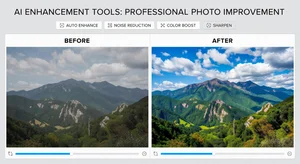
AI noise reduction analyzes the image and removes grain while preserving detail. Used to be a balance where reducing noise blurred details. AI manages both.
This is especially valuable for low-light photography. Instead of manually adjusting noise reduction per photo, AI handles it automatically and usually gets it right.
Batch noise reduction works well when photos are shot in similar conditions. One setting, apply to all. Your nighttime event photos all get cleaned up simultaneously.
Export Presets and Automation
The final step shouldn't slow you down either.
Create export presets for different destinations. Web, print, social media, client delivery. Each has optimal resolution, file type, and compression.
Batch export with your preset. Select all edited photos, choose export preset, walk away. Come back to properly formatted photos ready to upload or send.
Auto-naming during export helps too. Add dates, sequence numbers, or specific prefixes automatically. No manual renaming of hundreds of files.
What Not To Automate
Some things still need human judgment.
Fine art retouching. AI can help but human touch matters for perfection.
Creative color grading where you want a specific artistic look. AI gets you close but final tweaks are personal.
Composition choices. AI can't decide if a photo should be cropped tighter or left wider. That's aesthetic judgment.
Client-specific requests. If someone asks for specific adjustments, you need to review individually.
But even for these, AI can do the foundational work. You're refining AI's output, not starting from blank.
Workflow That Actually Saves Time
Import photos. Do basic AI organization: detect and tag faces, identify scenes, group similar lighting.
Batch process in groups. Similar lighting gets similar adjustments. Product shots together, portraits together, landscapes together.
AI enhancement for common issues: noise reduction, color correction, background removal where needed.
Individual review for final touches. Go through each photo quickly, make small adjustments where AI didn't nail it.
Batch export with presets. All photos formatted correctly for their final destination.
This workflow cuts editing time dramatically compared to individually processing each photo from start to finish.
The Math on Time Savings
If you edit 100 photos and each takes three minutes manually, that's five hours.
With AI and batch processing: three minutes to edit one photo perfectly, one minute to batch apply settings to the other 99, 20 minutes for individual tweaks on outliers. Total: maybe 90 minutes.
You just saved three and a half hours. Same quality output.
For professionals editing thousands of photos monthly, this compounds. Hours saved daily add up to full work days saved per month.
Tools Worth Learning
Not all AI editors are equal for productivity.
Look for solid batch processing. If it can't batch most operations, it'll slow you down.
Preset systems that are easy to create and apply. Complicated preset management defeats the purpose.
Good AI selection tools. Face detection, object detection, sky selection. These are non-negotiable.
Fast processing speed. AI is great but not if it takes minutes to process one image. Good tools are near-instant for most operations.
Keyboard shortcut customization. Everyone's workflow is different. Being able to map your most-used actions to convenient keys helps.
The Reality of Productivity
You won't master all these techniques immediately.
Start with batch processing and AI background removal. Those alone save massive time.
Add keyboard shortcuts gradually. Learn one new shortcut per week until the ones you use constantly are automatic.
Build preset library as you go. Each time you do an effect you'll use again, save it.
Over a month, these habits compound into serious time savings. Your editing gets faster without sacrificing quality.
The goal is spending less time on repetitive work and more time on creative decisions. AI and smart workflows make that possible. Your photos look great, you finish faster, and you're not burnt out from hours of mind-numbing manual adjustments.
That's what productivity in image editing actually looks like.