
How to Convert Any Photo to Text Instantly: OCR Use Cases | Cliptics
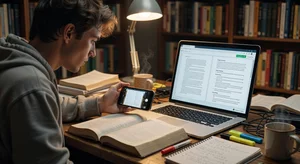
There is a specific kind of frustration that every researcher, student, and office worker knows: you have information trapped inside a photo, a scan, a screenshot, or a physical document, and you need it to be editable text. Before OCR became accessible, the only option was retyping. Which, for a 40-page document, is exactly as bad as it sounds.
The Cliptics Photo to Text converter makes this a solved problem. But the range of situations where it applies is broader than most people initially recognize. Here are the most valuable use cases organized by who needs them most.
For Students: The Research Workflow Accelerator
Students encounter trapped text constantly. Library books that can't be photocopied digitally, physical class notes from a professor who doesn't post slides, printed handouts that need to be referenced later, pages from books on reserve that you can only photograph.
The traditional solution was to type everything out, which consumed time that could be spent on actual analysis. Or to write citations from memory, which invited errors.
The practical student workflow: photograph every key page as you research. At the end of a research session, batch-convert all photos to text. Paste the extracted text into your research document alongside your notes and citations.
This works particularly well for quotation mining. If you're writing a paper that needs several direct quotes from a physical source, photographing the relevant pages and extracting text lets you work with the exact language without the risk of transcription error. Academic integrity depends on quotation accuracy, and OCR eliminates a meaningful source of inadvertent misquotation.
For note-taking from lectures with physical whiteboards, photographing the board at lecture end and converting to text creates searchable, editable notes without having to process everything during the lecture itself.
For Researchers: Primary Source Digitization
Academic researchers working with physical archives, old documents, or historical materials face a specific version of the OCR problem: extracting usable text from materials that weren't produced for digital use.
Newspaper clippings, letterpress documents, typed manuscripts, handwritten correspondence (modern OCR handles print well; truly historical handwriting is harder), and physical survey forms all become searchable, copyable, and analyzable after OCR conversion.
The practical research application: build a searchable archive of primary sources from photo captures. Instead of returning repeatedly to physical archives or spending hours retyping quoted passages, OCR the materials once and work from the digital version.
For coding qualitative data, OCR extracted interview transcripts or survey responses are significantly easier to analyze in CAQDAS software than image files. The text becomes directly importable rather than requiring intermediate transcription.
For Business Professionals: Document Workflow Efficiency
The business case for photo-to-text conversion covers four distinct workflows:
Business card contact extraction: Instead of manually typing contact information from received business cards, photograph and OCR them. The extracted text feeds directly into your CRM or contacts app.
Receipt and invoice processing: Finance teams and solo operators dealing with paper receipts and mailed invoices use OCR to extract line items and totals rather than keying them manually. Error rates on manual entry versus OCR-extracted input are not close.
Contract clause extraction: Legal and procurement teams photograph contract pages for clause-level analysis without requiring the entire document to be in a native digital format. OCR the page, paste the clause, analyze. This is faster than scanning to PDF and then extracting, particularly for isolated clauses from long contracts.
Handwritten form processing: Customer feedback forms, sign-in sheets, and paper application forms can be photographed and OCR'd to extract responses, though handwriting recognition quality depends on legibility.
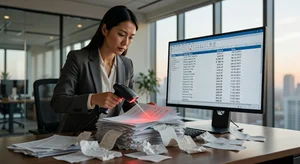
Getting the Best Results From OCR
OCR accuracy depends significantly on input image quality. A few practices that consistently improve results:
Lighting: Even, diffuse lighting without strong shadows or hot spots. Natural light near a window works well. Direct flash creates glare on glossy surfaces.
Angle: Photograph straight-on rather than at an angle. Even a 15-degree tilt introduces perspective distortion that degrades OCR accuracy. If you're photographing a physical document regularly, a document stand that holds your phone directly above the page improves consistency.
Resolution: Use the highest resolution your phone camera offers. OCR works from pixel data; more pixels mean more information for the algorithm to work from.
Contrast: Black text on white paper is optimal. Colored text on colored backgrounds, faded documents, and watermarked paper all reduce accuracy.
For printed English text in good condition, modern OCR tools including Cliptics achieve accuracy rates of 96-99%. For documents with unusual fonts, closely spaced text, or image artifacts, expect 90-95% accuracy and plan for a review pass.
The Workflow for Bulk Processing
For recurring OCR needs (weekly receipt processing, ongoing research archiving), establish a batch workflow rather than processing one document at a time.
Collect your week's photos into a folder. Process them together using the batch upload function if available. Export the extracted text in a format that feeds your downstream workflow: plain text for notes, CSV for financial data, formatted document for report content.
The compounding time saving: a business owner who processes 20 receipts per week manually spends 15-25 minutes on data entry. The same volume via OCR and batch processing takes 4-6 minutes. Over a year, that's 8-10 hours recovered on a single recurring task.
The Accuracy Ceiling and When Human Review Matters
OCR is a productivity tool, not an error-elimination tool. For any content where errors have consequences (legal documents, financial records, academic quotations), plan for a review pass.
The practical standard: OCR gets you from 0 to 95% of the work done. Human review catches the remaining 5%. The combined workflow is still substantially faster than pure manual transcription, and the review pass is faster and more effective than you might expect because you're checking rather than creating.
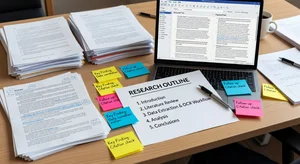
The text extraction step is now trivially fast. What matters is what you do with the extracted content. The students who use OCR to build searchable research archives, the businesses that feed OCR output directly into their data workflows, and the researchers who convert primary sources into analyzable text are the ones getting the compounding efficiency gain.
The tool is free. The opportunity cost of not using it, measured in hours of manual transcription, is real.