
Extract GIF Frames for Video Editing Projects | Cliptics
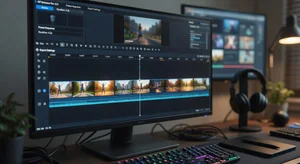
Mixing GIF frames into video projects creates interesting visual effects and gives you access to animated content as raw materials. But getting those frames out of the GIF and into your video editor in a usable format requires understanding the technical side.
I've used extracted GIF frames for motion graphics backgrounds, texture overlays, and stylistic transitions in video projects. When done right, it opens up creative possibilities that working with whole GIFs doesn't allow.
Why Extract for Video Editing
Frame level control lets you manipulate individual images. Speed up, slow down, reverse, or rearrange frames however you want. You can't do this as easily working with the GIF file directly.
Color grading individual frames gives you precise control. Adjust specific frames differently for stylistic effects. GIFs have limited color palettes, but extracted frames can be processed in full color space.
Compositing works better with frame sequences. Layer extracted frames over video, blend them, mask them, apply effects. Video editors are designed for this kind of work.
Timing flexibility means you control exactly how long each frame displays. The GIF's built in timing doesn't constrain you. Set custom durations for each frame.
Format Considerations for Video Work
PNG sequences maintain quality and transparency. Most video editors import PNG sequences as video clips. Transparency lets you layer frames over other footage cleanly.
JPG works if transparency isn't needed and file size matters. For background plates or full frame content, JPG saves storage space without significant quality issues.
Frame numbering must be sequential. frame_001.png, frame_002.png, etc. Editors recognize this pattern as an image sequence. Missing numbers cause problems.
Resolution affects usability. Low resolution GIF frames might not work for HD or 4K projects. Extract at native resolution and upscale carefully if needed, knowing quality limits exist.
Extraction Process for Editors
Get all frames from the GIF, not just selected ones. You want the complete sequence for video editing. Missing frames create unwanted jumps or gaps.
Maintain original frame order. The sequence matters. Frames must export numbered correctly so they import in the right order.
Choose consistent file format. Don't mix PNG and JPG within one sequence. Editors expect consistency in image sequence imports.
Specify color space when possible. sRGB is standard for web. If your video project uses specific color spaces, match that during extraction to avoid color shifts.
Importing into Video Editors
Most editors treat numbered image sequences as video clips. Point the import at frame_001.png and the editor loads the whole sequence automatically. This makes working with hundreds of frames manageable.
Frame rate interpretation matters. The editor needs to know what frame rate to play your sequence. 24, 30, or custom rates depending on your project. Choose frame rate to match your video or set custom timing.
Duration is calculated from frame count and frame rate. 60 frames at 24fps equals 2.5 seconds. Understand this relationship to predict how your extracted frames will behave in the timeline.
Creative Applications
Background animations from GIFs work great for motion graphics. Extract frames, import sequence, use as animated background. Way easier than recreating the animation manually.
Overlay textures add visual interest. Film grain, light leaks, or abstract patterns extracted from GIFs and blended over footage create specific aesthetics.
Transition effects can be built from animated GIF elements. Extract frames showing growth, reveal, or morphing effects. Use these as custom transition graphics.
Stylized looks benefit from textured GIF frames overlaid with blend modes. Experiment with multiply, screen, or overlay blend modes to create interesting visual treatments.
Timing and Speed Manipulation
Slow down by duplicating frames. If you want a 30 frame sequence to last twice as long, duplicate each frame. Simple frame duplication creates stuttery slow motion which can be an intentional aesthetic.
Speed up by skipping frames. Use every other frame or every third frame. The sequence plays faster. Works for creating energy or matching different pacing.
Reverse by renumbering frames backward. frame_030 becomes frame_001, etc. Creates reverse playback effects. Some editors have reverse functions that do this automatically.
Hold on specific frames by duplicating them. If frame 15 is important, duplicate it ten times. The sequence pauses on that frame before continuing.
Quality Optimization
Start with highest quality source GIFs. If you created the GIF, work from your source materials when possible. Extraction from compressed GIFs limits quality ceiling.
Upscaling might be necessary for HD projects. Use good upscaling algorithms. AI based upscaling works better than basic bicubic. Accept that you're not adding real detail though.
Color correction enhances limited GIF palettes. Extracted frames can be graded to richer colors. Push saturation, adjust curves, work beyond the 256 color limitation.
Sharpening brings out detail. Subtle sharpening helps especially if the GIF was compressed. Don't overdo it or artifacts appear.
Blending and Compositing
Layer modes create different effects. Multiply darkens, screen lightens, overlay combines. Experiment with how GIF frame overlays interact with underlying video.
Opacity control makes overlays subtle. Full opacity might be too strong. Lower opacity integrates the effect more naturally.
Masking focuses effects to specific areas. Maybe you only want the GIF texture in the background, not over faces. Mask accordingly.
Tracking motion matches GIF elements to moving subjects. More advanced but creates impressive effects where extracted GIF animations follow subjects through the shot.
Loop Points and Continuity
Smooth loops matter when extracted frames need to repeat. Check if the last frame connects smoothly back to the first. Edit frames if needed to create better loops.
Duration matching to music or beats enhances impact. Time your frame sequence so key frames hit important moments in the audio track.
File Management
Organization is critical with hundreds of image files. Create project folders. Keep sequences from different GIFs separate. Name folders clearly.
Storage space adds up quickly. PNG sequences especially consume significant space. A 100 frame sequence in 1080p might be several hundred MB. Plan storage accordingly.
Backup before deleting. Don't delete extracted frames until your project is completely finished and delivered. You might need to revise or revisit.
Common Video Editor Workflows
Premiere Pro imports image sequences directly. File > Import, select first frame, check image sequence option. The whole sequence becomes a clip.
Final Cut Pro handles frame sequences as compound clips. Import, select all frames, create compound clip. Works smoothly once set up.
DaVinci Resolve treats image sequences as media files. Similar import process to other editors. Strong color grading tools help enhance extracted frames.
After Effects excels at working with image sequences. Frame by frame manipulation, effects, and animation all work naturally with extracted GIF frames.
Rendering Considerations
Export settings affect how your integrated GIF frames look in final output. Match your project settings. Don't accidentally scale or crop during export.
Codec choices impact quality. For master files, use high quality codecs. For delivery, balance quality and file size appropriate to platform.
Frame blending can smooth frame rate differences. If your extracted frames play at different rates than your base footage, frame blending helps blend the transition.
Advanced Techniques
Frame interpolation creates in-between frames. Tools like Optical Flow generate new frames between existing ones. This smooths extracted frame playback if the original was low frame rate.
Rotoscoping extracted frames lets you isolate elements. If a GIF frame has an element you want separately, rotoscope it out. Use that element independently.
Time remapping creates variable speed effects. Speed up and slow down within the same sequence for dynamic pacing.
Troubleshooting Issues
Color shifts when importing might mean color space mismatches. Check your project color space and frame color profiles. Convert if needed.
Jumpy playback could be missing frames or wrong frame rate interpretation. Verify all frames imported and frame rate is set correctly.
Quality loss beyond expected means additional compression somewhere. Check export settings from extraction and import settings in editor.
Making It Practical
Test with a short sequence first. Before extracting and processing tons of frames, try the workflow with a small test. Make sure everything works as expected.
Templates help repeat the process. If you found settings that work well, save them as presets or templates for future projects.
Document your workflow. Note what settings and steps work for your specific setup. This saves time troubleshooting when you return to similar projects later.
Extracting GIF frames for video editing expands your creative toolkit. It takes some technical setup, but once you understand the process, it opens up interesting possibilities for incorporating animated GIF aesthetics and elements into professional video work.