I thought more frames always meant better quality. Turns out I was creating bloated GIFs that took forever to load and didn't actually look any better than versions with half the frames. Frame rate impacts file size way more than most people realize.
Understanding how frame rate affects both file size and visual quality means you can make smarter decisions about your GIFs. You don't need to just accept whatever frame rate your source video has. Adjusting it strategically can dramatically improve performance without hurting how your animation looks.
The Math Behind Frame Rate and File Size#
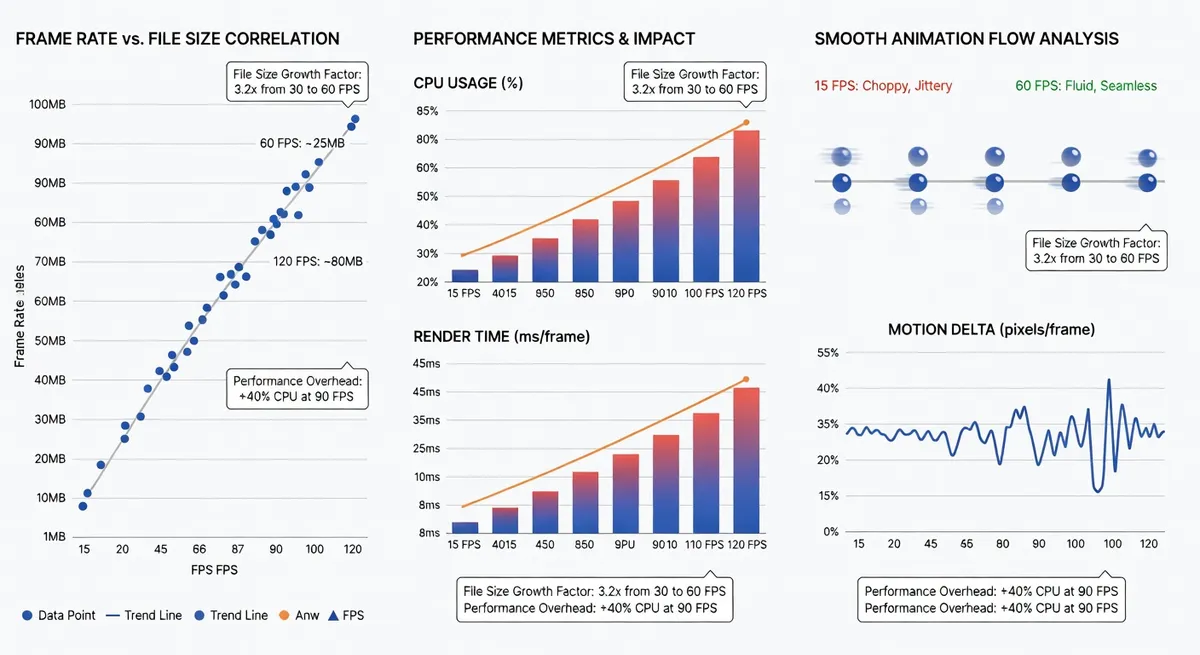
Every frame in your GIF is image data that needs to be stored. Double your frame rate, you roughly double your file size. It's that direct. A 24 FPS GIF of the same length has twice as many frames as a 12 FPS version.
But compression complicates this. Frames that are very similar to the previous frame compress better. High frame rates mean consecutive frames are more similar, which helps compression algorithms. So doubling frame rate doesn't always exactly double file size, but it still increases it significantly.
For web use and social media, you're often working under file size limits. 8MB, 5MB, sometimes less. Frame rate directly determines whether you can fit your animation within those constraints while maintaining acceptable quality.
Human Perception of Frame Rate#
Here's what matters. Human eyes don't need super high frame rates to perceive smooth motion. Cinema has used 24 FPS for a hundred years because that's enough for our brains to see fluid movement rather than individual images.
Going to 30 or 60 FPS does create smoother motion, especially for fast action. But the difference between 30 and 60 FPS is way less noticeable than the difference between 12 and 24. There are diminishing returns as frame rate increases.
For many GIFs, especially simple animations or slower movements, 15 or even 12 FPS looks perfectly smooth. You're not making Hollywood blockbusters here. You're creating short animations for web and mobile. You can usually drop frame rate pretty far before anyone notices.
Performance Impact on Websites#
Higher frame rate GIFs take longer to load. That's obvious. But they also use more processing power during playback. Your visitor's device has to decode and display more images per second. On lower end phones or older computers, this can cause stuttering.
Lower frame rate GIFs load faster and play smoothly on more devices. This improves user experience across a wider range of hardware. Unless you specifically need high frame rate for some reason, going lower is often smarter.
Page speed scores factor in how long your assets take to load. A high frame rate GIF that's 8MB hurts your score way more than a 15 FPS version that's 3MB. Search engines care about these metrics. So should you.
Finding the Sweet Spot#
For most GIFs, 15 to 20 FPS is the sweet spot. It's smooth enough that motion looks fluid, but not so high that file sizes become problematic. This range works well for product demos, tutorials, reactions, and general animation.
Really simple animations like loading spinners or icon animations can go lower. 10 to 12 FPS is often fine when there's not much motion or detail. The lower frame rate keeps file sizes tiny while still looking good.
Fast action or sports clips might benefit from 24 to 30 FPS to capture quick movements clearly. But be honest about whether your content actually needs it. Often the difference isn't worth the file size cost.
Source Material Considerations#
If you're creating a GIF from video, your source probably has a specific frame rate. 24, 30, or 60 FPS are common. You don't have to keep that frame rate in your final GIF.
Dropping to half the source frame rate usually works well. A 30 FPS source becomes a 15 FPS GIF. You're skipping every other frame, which keeps motion smooth while cutting file size dramatically. The visual difference is minimal for most content.
Going lower requires more care. Dropping to a third or quarter of the original frame rate can work for slow content but makes fast motion look choppy. Test different frame rates to see what works for your specific animation.
File Size Calculations#
A 1920x1080 GIF at 24 FPS for 5 seconds has 120 frames. At 12 FPS, that's 60 frames. That's half the data to store and compress. In practice, you might see file size reductions of 40 to 60 percent just from that frame rate change.
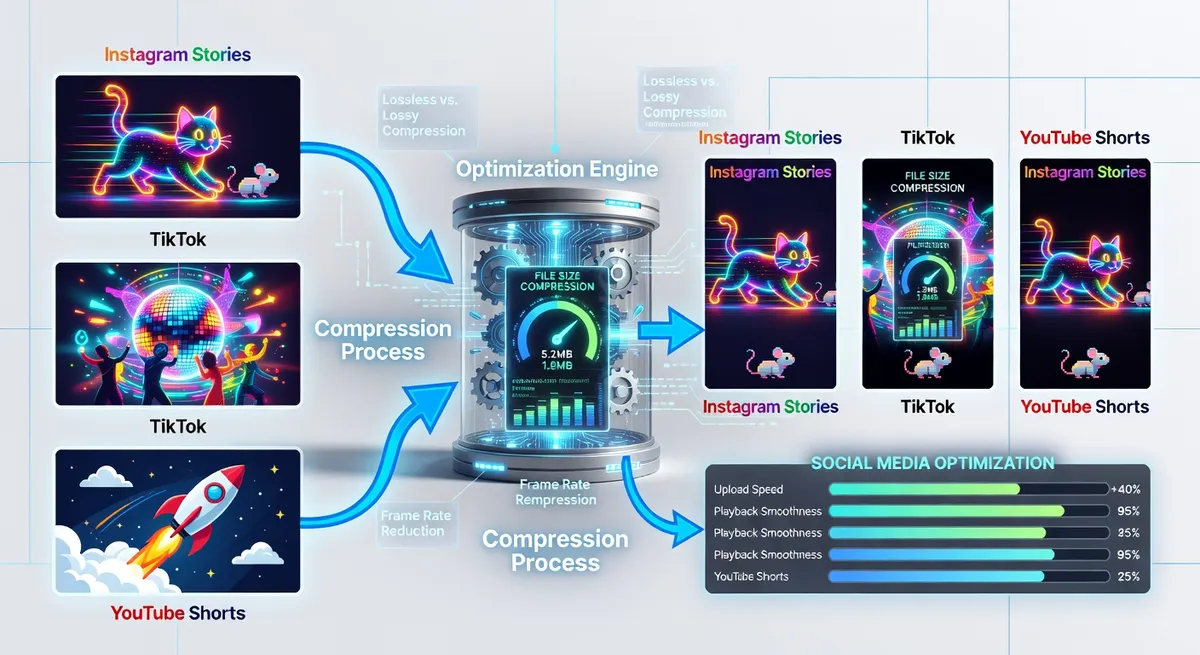
Combine lower frame rate with compression and you can get massive file size improvements. A GIF that was 10MB at 30 FPS might become 2MB at 15 FPS with good compression. That's the difference between unusable and perfectly fine for web use.
Browser and Platform Behavior#
Some platforms re-encode GIFs you upload. They might change the frame rate to fit their technical specs or file size requirements. If you upload a 60 FPS GIF, it might get converted to 24 FPS anyway. Better to control that yourself and optimize for your target platform.
Mobile browsers sometimes throttle frame rate for GIFs to save battery and processing power. Your carefully crafted 60 FPS GIF might play at 30 FPS on mobile devices anyway. Knowing this helps you make smarter decisions about what frame rate to use.
Quality vs Performance Tradeoffs#
Higher frame rates look smoother. That's undeniable. But is that smoothness worth double or triple the file size and load time? For most use cases, probably not. You need to balance visual quality against practical performance constraints.
User experience includes load time, not just playback quality. A slightly choppier GIF that loads instantly often provides a better overall experience than a super smooth one that takes five seconds to load. Consider the complete picture.
Tools and Techniques#
Frame rate converters let you easily adjust FPS when creating GIFs. Most video editing software lets you export at custom frame rates. Don't just use default settings. Choose frame rates intentionally based on your needs.
Frame blending can help when reducing frame rate. Instead of just dropping frames, the software creates blend frames that show motion between keyframes. This can make lower frame rate GIFs look smoother. Not always necessary, but sometimes worth the extra processing.
Testing different frame rates with your specific content is important. What works for one animation might not work for another. Export several versions at different frame rates and compare both file size and visual quality.
Real World Examples#
I tested a simple product demo GIF. At 30 FPS, it was 6.2MB. At 20 FPS, 4.1MB. At 15 FPS, 2.9MB. Visually, the difference between 30 and 15 FPS was barely noticeable, but the file size was less than half. Easy choice.
Another test with fast action content. At 12 FPS, motion looked choppy and jarring. At 24 FPS, smooth and clear. At 60 FPS, slightly smoother but file size was enormous. 24 FPS was clearly the right balance for that content.
Optimizing for Social Media#
Instagram tends to work well with 15 to 20 FPS GIFs. Twitter handles slightly higher frame rates fine. LinkedIn audiences probably won't notice or care about super high frame rates. Optimize for your platform and audience expectations.
File size limits on different platforms also guide frame rate choices. If a platform has a 5MB limit and your 24 FPS GIF is 7MB, dropping to 18 FPS might get you under that limit while keeping quality acceptable.
Animation Type Matters#
Text animations and simple graphics don't need high frame rates. The motion is usually discrete rather than continuous. 12 to 15 FPS is often plenty for kinetic typography or logo animations.
Photographic content with motion benefits more from higher frame rates. Camera pans, moving subjects, anything with fine detail in motion looks better at 20 to 24 FPS. But even here, diminishing returns kick in above 30 FPS.
Stop motion style animations can go even lower. 8 to 10 FPS sometimes creates the aesthetic you want. The slightly choppy playback is part of the charm and keeps file sizes incredibly small.
Making Your Decision#
Start by determining your file size target. If you need to stay under a specific size, frame rate is one of your main levers for getting there without destroying quality. Calculate how low you can go while staying smooth.
Test on actual devices. What looks fine on your high end desktop might look choppy on a phone. What loads instantly on fiber internet might take forever on 4G. Check your GIFs under real world conditions.
When in doubt, go lower rather than higher. The performance benefits of lower frame rates are concrete and measurable. The visual quality improvements of higher frame rates are often subjective and sometimes unnoticeable. Err on the side of better performance.
Frame rate is one of the most powerful tools you have for controlling GIF file size and performance. Use it strategically instead of just accepting default settings, and your GIFs will load faster, play smoother across devices, and still look great.