
How to Blur Backgrounds in Product Images Using Free Tools | Cliptics
Product photos with blurred backgrounds look like they came from a professional studio shoot. But here's the thing most e-commerce sellers don't realize: that soft background effect doesn't actually require a DSLR camera with a wide aperture lens. You can create it after the fact, with free tools, in a couple of minutes.
This tutorial walks you through exactly how to do that, whether you're working with phone photos, stock images, or anything in between.
Why Blurred Backgrounds Work for Product Shots
Before the how-to, a quick note on why this matters. When a background is sharp and busy, your eye gets pulled in multiple directions. The product has to compete for attention with whatever's happening behind it.
A blurred background fixes that. The eye goes straight to the subject because everything else in the frame is soft and non-distracting. It's the same reason portrait photographers shoot with wide apertures: it's a visual trick that tells the brain "this thing matters, ignore everything else."
For e-commerce specifically, this translates to better click-through rates, more time spent on product pages, and generally a more polished brand impression. You don't need a studio setup to get that result.
Option 1: Use a Dedicated Background Blur Tool
The fastest method is Cliptics' background blur tool. You upload your image, the AI automatically detects your product subject, and applies a natural-looking blur to everything behind it. No manual selection needed, no Photoshop skills required.
Here's how to use it:
Upload your product photo. For best results, make sure the product is reasonably centered and well-lit. The AI identifies the subject more accurately when there's decent contrast between the product and background.
Let the tool process the image. It'll take just a few seconds.
Download the result. If you want more control over the blur intensity, look for the slider option to adjust how strong the effect is.
This works really well for most common product photos: clothing on flat lay, skincare bottles, home goods, accessories, electronics. Anything with clear edges tends to produce a cleaner result.

Option 2: Remove the Background First, Then Add a Blurred Version
For trickier shots, maybe the product has lots of fine details, intricate edges, or a complex shape, the two-step approach often gives better control.
First, remove the background completely to get a clean cutout of just your product. Download that version with a transparent background.
Then, take your original photo and apply the blur to create a background layer. Combine the sharp product cutout on top of the blurred background. This gives you pixel-perfect edges on the product while the background looks beautifully soft.
It takes a few extra minutes, but the result is noticeably cleaner for products with detailed edges like jewelry, plants, or anything with a lot of fine detail.
Option 3: Try the In-Device Method for Mobile Shots
If you're capturing product photos on your phone, Cliptics' in-device background blur tool runs directly in your browser without uploading to a server. Good for sellers who shoot products regularly and want to keep things moving fast.
The workflow is the same: upload, blur, download. But the processing happens locally, which some sellers prefer for privacy reasons or when working with a lot of images in a session.
Getting the Best Results
A few things that improve your output regardless of which method you use:
Lighting matters even with a blur. Flat, even lighting on your product means cleaner AI detection and a more natural-looking blur effect. Shadows that fall on the product unevenly can confuse the subject detection.
Plain backgrounds blur better. If your background is already simple, a textured wall or clean floor, the blur effect tends to look more realistic than if the background is chaotic with lots of objects.
Don't over-blur. The goal is a soft, natural depth-of-field look, not a vaseline-on-the-lens effect. If the blur slider goes to 100, you probably want it somewhere between 40 and 70 for most product shots.
After blurring, compress the file. High-resolution product images with applied effects can get large. Run them through Cliptics' image compressor before uploading to your store. You'll cut file size without losing visible quality, and your pages will load faster.
Using an AI Image Editor for Full Control
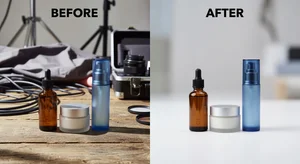
If you want to blur specific parts of the background while leaving others sharp, or if you want to do other edits in the same session, Cliptics' AI image editor gives you more flexibility. You can apply background blur as one of several edits without jumping between tools.
This is particularly useful if you're batch processing product photos that also need brightness adjustments, color correction, or object removal in the same workflow.
What to Expect From Free Tools vs Paid Software
Honestly, for most standard e-commerce product photos, the free tool output is good enough that customers won't notice a difference. The AI has gotten really good at distinguishing products from backgrounds.
Where paid software still has an edge is in very complex edge scenarios, like translucent products, reflective metals with complicated reflections, or studio shots with intentional environmental context you want to partially preserve. For everything else, free tools get you 90 percent of the way there at zero cost.
The upgrade most sellers actually need isn't better software. It's better original photos and a consistent editing workflow. Those two things, more than any tool upgrade, are what make product photography look professional.