
How to Capture a High-Quality Still Image from a GIF | Cliptics
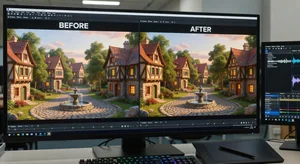
You've got a GIF with that perfect moment and you want it as a still image. Seems straightforward until you try it and end up with a blurry, low quality screenshot that looks nothing like what you saw playing. Capturing high quality stills from GIFs requires the right approach.
Screenshots don't work well. Screen capture tools grab whatever's displayed, which means you're capturing a rendered playback, not the source quality. There's a better way that preserves the actual frame quality.
Why Screenshots Look Bad
Screen capture compresses the image. You're not getting the source pixels. You're getting a compressed representation of what was displayed on your screen at that moment. This introduces artifacts and quality loss.
Timing is nearly impossible. GIFs loop continuously. Trying to screenshot the exact frame you want requires perfect timing. You'll probably miss and get the frame before or after.
Resolution depends on your display. If your screen is 1920x1080 and the GIF is displayed smaller, your screenshot captures it at that reduced size, not the GIF's native resolution.
Color reproduction might be off. Screen capture tools grab displayed colors, which can be affected by your display calibration, browser rendering, or color profile mismatches.
Extracting Frames Properly
Frame extraction tools pull actual frames from the GIF file. You're getting the source data, not a screenshot. Quality stays perfect because you're working with the original pixels.
Most extraction tools let you preview frames before exporting. Scrub through the animation, find the exact frame you want, export just that one. No timing guesswork required.
File format matters. Export as PNG to maintain quality and transparency. JPG works if file size matters more than absolute quality and you don't need transparency.
Identifying the Perfect Frame
Play your GIF several times. Note which frame captures what you need. Is it the peak of an action? A specific expression? The moment of impact? Know what you're looking for before you start extracting.
Some moments span multiple similar frames. You might have three or four consecutive frames that all work. Extract several candidates to compare. Sometimes the frame you thought was perfect actually isn't once you see it isolated.
Motion blur affects frame quality. GIFs created from video might have frames with blur during fast movement. The previous or next frame might be sharper if the subject was moving slower.
Tools for Frame Capture
GIF frame extractors designed for this purpose work best. Upload your GIF, browse frames, select the one you want, download it. Clean process with maximum quality retention.
Cliptics frame extractor handles this straightforwardly. View all frames, pick the one you need, export as PNG or JPG. The interface makes finding your target frame easy.
Video editors can treat GIFs as video. Import the GIF, scrub to your desired frame, export that frame. Works well if you're already using video editing software.
Maintaining Maximum Quality
Lossless export preserves every detail. PNG format with no additional compression gives you perfect quality matching the source frame exactly.
Some tools offer quality settings. Max quality settings prevent any additional compression or resampling. Use these when quality matters more than file size.
Native resolution export ensures you're not upscaling or downscaling. The exported frame should match the GIF's dimensions precisely. 1920x1080 GIF exports 1920x1080 frame.
Handling Transparency
If your GIF has transparent backgrounds, PNG preserves that transparency. This matters when you want to use the still image over other content.
Background color for JPG export matters when working with transparent GIFs. JPG doesn't support transparency, so transparent areas become solid color. Choose white, black, or whatever makes sense for your use.
Check transparency edges carefully. Make sure semi transparent pixels transfer correctly. Edge quality shows whether extraction handled transparency properly.
Use Cases for Still Captures
Social media posts benefit from perfect GIF moments as static images. That ideal frame becomes a standalone post, thumbnail, or preview image with better quality than screenshots.
Blog post featured images can come from your GIFs. If you created animated content, pull stills for article headers or inline images. Maintains visual consistency.
Printing requires high quality source files. Screenshots won't cut it. Properly extracted frames give you clean images suitable for print materials.
Portfolio pieces might show key frames from animations. Extract your best frames to showcase animation work in static formats when needed.
Comparison and Selection
Extract multiple candidate frames. Compare them side by side. The frame that looks perfect while the GIF plays might not be the best as a standalone image.
Composition matters differently for stills versus motion. An in-between frame that works in animation might look awkward frozen. Choose frames where the subject is in clean poses, not mid transition.
Facial expressions especially need careful frame selection. Half blink, mid word, transitional expressions all look weird isolated. Find frames where the expression is clear and complete.
Editing After Extraction
Color correction might improve extracted frames. GIF color palettes are limited. Converting to a fuller color space and adjusting can enhance the image for use outside the GIF context.
Cropping or resizing the extracted frame optimizes it for specific uses. Maybe you want a square version for Instagram but the GIF is landscape. Crop the frame appropriately.
Sharpening can help if the GIF was compressed or lower quality. Subtle sharpening brings out detail. Don't overdo it or you'll create artifacts.
Frame Rate Considerations
Higher frame rate GIFs give you more frame options. If your GIF has 60 frames per second, you have tons of choices. Lower frame rate means fewer options and you might not have a perfect frame.
In-between frames from interpolation might not look as clean as source frames. If the GIF used frame blending or interpolation, some frames are synthetic. Source frames usually look better.
Quality Loss Sources
GIF color limitation means frames might look posterized compared to full color video. This is inherent to GIF format, not extraction quality. The extracted frame will match the GIF quality, which might be limited.
Compression artifacts in the source GIF transfer to extracted frames. You can't recover quality that was lost when the GIF was created. Extract from the highest quality source GIF you have.
Batch Frame Extraction
If you need stills from multiple GIFs, batch extraction saves time. Process several GIFs at once, pull key frames from each. Much faster than handling them individually.
Consistent naming helps organization. gif1_frame023.png, gif2_frame045.png. You know exactly which frame came from which source.
Avoiding Common Mistakes
Settling for the first frame you see often means missing better options. Scrub through the entire GIF. The perfect moment might be near the end.
Not checking frame quality before using it causes problems later. View extracted frames at 100 percent size. Make sure quality is what you expected.
Forgetting to preserve transparency ruins the extracted frame's usefulness for certain applications. Specify PNG and transparency preservation if your GIF uses transparency.
File Format Decisions
PNG for highest quality and transparency support. File sizes are larger but quality is perfect. Use this when quality is priority.
JPG for smaller file size when transparency isn't needed. Good for web thumbnails or situations where file size matters more than absolute quality.
WebP offers good balance of quality and size with transparency support. Increasingly supported but still not universal. Consider compatibility needs.
Professional Workflow
Work from highest quality source. If you created the GIF yourself, keep the source files. Extract frames from those rather than from the compressed GIF when possible.
Save extracted frames with metadata. Note which GIF they came from, what frame number, any relevant context. This helps if you need to reference them later.
Version control matters if you're extracting frames for professional projects. Keep original extracted frames separate from edited versions. Don't overwrite originals.
Quick Tips
Preview before extracting when possible. Seeing the frame isolated before committing to extraction prevents disappointment.
Extract as PNG first, convert to JPG later if needed. This preserves maximum quality through your workflow. Converting the other direction adds quality loss.
Check the frame at actual size. Thumbnails might look fine but reveal issues when viewed full size. Verify quality before considering the extraction complete.
Capturing high quality stills from GIFs is about using the right tools and approach. Frame extraction beats screenshots every time for quality, and the process is simple enough that there's no reason to settle for inferior results.