
How to Crop a GIF Online Without Breaking the Animation | Cliptics
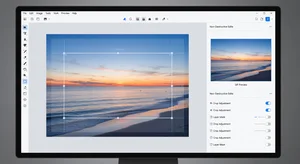
Ever tried to crop a GIF and ended up with a static image instead of an animation? I've been there. You carefully select the area you want, hit crop, and suddenly you're looking at a single frozen frame. The animation just vanishes.
Cropping GIFs properly requires tools that understand you're working with multiple frames, not just a single image. Regular image editors treat GIFs like static files. You need something that processes all the frames while maintaining timing and quality.
Why Regular Tools Break GIFs
When you open a GIF in a standard image editor, it usually only shows the first frame. When you crop and save, you're only saving that one frame. The other 50 or 100 frames just get discarded. Your animation becomes a still image.
Some editors can technically handle GIFs but strip metadata during the save process. Frame timing, transparency data, loop settings all get lost. You might keep all your frames but the timing gets reset to defaults and it plays wrong.
Color palettes cause issues too. Each GIF frame has a color palette. Some editors mess with these palettes during processing, which can create visual artifacts or weird color shifts between frames. Proper GIF editors preserve these palettes correctly.
What Proper GIF Cropping Does
A GIF-aware crop tool processes every single frame with the same crop coordinates. Frame 1 gets cropped, frame 2 gets cropped, all the way through. This maintains your animation while changing the dimensions.
Frame timing stays intact. If frame 3 was set to display for 8 centiseconds before cropping, it's still 8 centiseconds after. The timing that makes your animation work correctly doesn't change just because you cropped the visual area.
Transparency is preserved if your GIF uses it. Transparent areas stay transparent. This matters for GIFs designed to overlay other content or sit on different colored backgrounds.
Selecting the Right Crop Area
Before cropping, watch your GIF loop a few times. Make sure you know what's happening in all the frames, not just the first one. Sometimes elements move in and out of frame. You don't want to accidentally crop out important parts of later frames.
Consider your aspect ratio. Are you cropping to a specific size like square for Instagram? Or just removing unwanted edges? Knowing your end use helps you select the right crop dimensions.
Preview if possible. Good cropping tools let you see how different crop areas affect your animation. Scrub through frames to verify your crop selection captures what you need across the entire animation.
Common Cropping Scenarios
Removing letterboxing is super common. You've got a GIF with black bars top and bottom from video conversion. Cropping those out makes the animation fill the frame better and reduces file size since you're removing dead space.
Focusing on specific elements works well too. Maybe your source shows a full screen but you only want to feature one section. Crop tight on that element to create a focused, impactful GIF from broader source material.
Resizing for platforms often involves cropping. Converting landscape content to vertical for Instagram Stories or TikTok means cropping to fit the new aspect ratio. Doing this wrong destroys your composition. Doing it right can actually improve it.
File Size Benefits
Cropping reduces dimensions, which directly reduces file size. A 1920x1080 GIF cropped to 1080x1080 loses almost half its pixel data. Fewer pixels means smaller files without any quality loss in the area you kept.
This makes cropping a legitimate optimization technique. If the edges of your GIF aren't important, crop them out. You get better performance and faster load times while keeping the important visual content intact.
Strategic cropping can sometimes let you use higher quality or more frames within file size limits. You're working with less area, so you have more budget for frame count or compression settings.
Tools That Actually Work
Browser based GIF editors designed specifically for GIFs handle this correctly. Tools like Cliptics GIF crop process all frames and maintain animation properties. No installation required, works right in your browser.
Command line tools like ImageMagick or FFmpeg can crop GIFs if you're comfortable with terminal commands. They offer precise control but have a steeper learning curve. Good for batch processing or automation.
Desktop GIF editors usually handle this fine. Photoshop, GIMP with plugins, or dedicated GIF software all work. Just make sure you're exporting properly and not accidentally saving as static images.
Avoiding Quality Loss
Use lossless cropping when possible. You're just removing pixels, not recompressing. Some tools will recompress your GIF during the crop operation, which can degrade quality. Look for options that crop without reencoding.
Watch for color palette changes. If your cropped GIF looks different colorwise than your original, the tool probably regenerated the palette. Try different export settings or a different tool that preserves the original palette.
Frame timing can get reset to defaults during saving. After cropping, check that your animation plays at the right speed. If timing changed, you might need to adjust frame delays to match your original.
Maintaining Transparency
If your original GIF has transparent backgrounds, make sure the crop tool preserves that. Some tools will replace transparency with white or black backgrounds. This ruins GIFs meant to overlay content.
Alpha channel handling varies between tools. The best ones maintain transparency correctly without any extra steps. Others might require specific export settings. Test your output to verify transparency works as expected.
Batch Cropping Multiple GIFs
If you need to crop many GIFs identically, batch processing saves time. Some tools let you apply the same crop coordinates to multiple files. This works great for creating consistent sizes across a series.
Automated cropping can work for certain use cases. Face detection, subject tracking, or center based cropping algorithms can automatically select crop areas. Results vary, but for straightforward cases this speeds things up.
Mobile Considerations
Mobile screens are smaller. Tight crops often work better than wide shots. Content that looks fine uncropped on desktop might need cropping to be legible on phone screens.
Vertical crops suit mobile scrolling. If your content allows it, cropping to 9:16 or similar vertical ratios makes GIFs fit better in mobile feeds. More of the animation fills the screen rather than sitting in a tiny horizontal strip.
Test cropped GIFs on actual mobile devices. What looks good on your computer might not translate well to a 5 or 6 inch screen. Scale and legibility matter more in mobile contexts.
When Not to Crop
If your whole frame is important compositionally, don't crop just to fit arbitrary dimensions. Find a better way to present the content that doesn't sacrifice the composition you intended.
Some GIFs are meant to be specific sizes. Cropping breaks their design. Meme templates, reaction GIFs with text overlays, anything with elements positioned specifically often doesn't work well cropped.
Quick Tips
Save the original before cropping. Seems obvious but worth stating. Once you crop and save, recovering the full frame requires going back to your source. Keep originals as backup.
Round crop dimensions to even numbers. Some encoding quirks handle even dimensions better. It's a minor technical thing but can avoid weird edge cases.
Preview loops before finalizing. Make sure your crop looks good through the entire animation, not just on one frame. Timing issues or awkward movements might only show up when watching the full loop.
Cropping GIFs doesn't have to be complicated. Use the right tools, pay attention to all frames rather than just one, and verify your output maintains animation properties. Do that and you'll get exactly the cropped animation you're after without any weird surprises.