
Image Compression for Core Web Vitals: Fix LCP Scores & | Cliptics
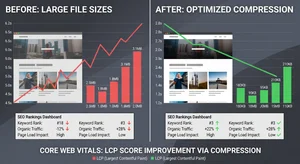
If you ran a Core Web Vitals audit on your site today and your Largest Contentful Paint (LCP) is failing, there is a better than 80% chance the culprit is an unoptimized image. Images are simultaneously the most impactful content element on most web pages and the most common source of performance problems.
This is not a theoretical concern. Google's search algorithm uses Core Web Vitals as a direct ranking signal. Poor LCP scores actively suppress your position in search results. And visitors who encounter slow-loading pages leave before the page finishes loading, at rates that have been measured and documented consistently across studies: 40% of users abandon pages that take more than 3 seconds to load.
Fixing your images is the highest-return performance action most websites can take.
Understanding LCP and Images
Largest Contentful Paint measures how long it takes for the largest visible element on the page to load. For most websites, that element is an image. Your hero image, product photo, or featured banner is almost always the LCP element.
Google's threshold for a "good" LCP score is 2.5 seconds or less. Between 2.5 and 4 seconds is "needs improvement." Over 4 seconds is "poor." Pages with poor LCP scores are penalized in organic search rankings.
The relationship between image file size and LCP is direct. A 4MB hero image needs to be downloaded before LCP can complete. On a mobile connection, that download alone can take 3 to 6 seconds. Compressing that same image to 200KB while maintaining visual quality makes it download 20 times faster.
Format Matters as Much as Compression
Before discussing compression settings, the format you use determines your baseline performance.
JPEG: The legacy standard. Good compression for photographs. Widely supported. Not ideal for modern performance optimization but universally reliable.
PNG: Lossless compression. Required for images with transparency. Much larger file sizes than JPEG for photographs. Use only when transparency is necessary.
WebP: Google's modern image format. 25 to 35% smaller than JPEG at comparable visual quality. Supported by all modern browsers (over 97% of users). Should be your default format for photographs in 2026.
AVIF: The newest format. 50% smaller than JPEG at comparable quality. Not yet supported by all browsers, but browser coverage is growing rapidly. Use with a fallback for maximum compatibility.
The format conversion alone, without any additional quality adjustments, can dramatically reduce your image file sizes.
Cliptics WebP Compressor converts images to WebP format with optimized compression. Cliptics AVIF Compressor handles AVIF conversion. Cliptics JPG Compressor and Cliptics PNG Compressor optimize traditional formats when you need to maintain those file types.
Optimal Compression Settings by Use Case
Different images on your site have different requirements. The same compression level that is appropriate for a small icon would be too aggressive for a hero photograph.
Hero and feature images: Target 200KB to 400KB in WebP format. Use quality settings between 70 and 80 (on a 0-100 scale where 100 is lossless). For most hero images at 1200 to 1600 pixels wide, this range produces visually excellent results.
Product photos: 100KB to 300KB in WebP. E-commerce product photos need to remain sharp because buyers examine detail. Use quality 75 to 85. Do not over-compress product images; degraded quality has direct impact on conversion rates.
Blog and article images: 50KB to 150KB in WebP at quality 65 to 75. Blog images are typically viewed at smaller sizes and readers are less focused on fine detail.
Thumbnails: Under 30KB. Small thumbnail images can be compressed aggressively since fine detail is not visible at small display sizes.
Icons and UI elements: Use SVG format for vector graphics. SVG files are resolution-independent and typically very small. For raster icons, use PNG with aggressive optimization.
Setting up the Fixes
Cliptics Image Compressor handles batch compression for any format. Here is the practical workflow:
Audit your current images. Use Google PageSpeed Insights or Chrome's Lighthouse tool to identify which images are causing LCP problems. The report shows specific images and their impact.
Identify the LCP image. This is the priority. Improving your LCP image directly improves your Core Web Vitals score. Common LCP images include hero banners, product images above the fold, and featured article images.
Set dimensions appropriately. Never serve an image larger than it will be displayed. If your hero image displays at 1200 pixels wide on desktop and 390 pixels wide on mobile, you need to serve different sizes for each screen. Serving a 2000-pixel image to a mobile user wastes bandwidth and hurts LCP.
Convert format. Convert JPEG and PNG images to WebP using Cliptics WebP Compressor. The conversion alone typically reduces file size by 30 to 40%.
Apply compression. Compress to the target file sizes outlined above. Compress to the target file size for each use case.
Set up in your CMS or code. Update your image src attributes to point to the new compressed files. For CMS users (WordPress, Shopify, etc.), most platforms have plugins that handle WebP conversion automatically.
Lazy Loading: The Other Half of Image Performance
Compression reduces the size of your images. Lazy loading reduces how many of them load on initial page visit.
The browser behavior without lazy loading: every image on the page, regardless of whether it is visible in the current viewport, begins downloading when the page loads. A page with 20 images loads all 20 simultaneously even if only 2 of them are visible without scrolling.
With lazy loading, only images in or near the current viewport load immediately. Images further down the page wait until the user scrolls toward them. This dramatically reduces the initial page load time.
Add loading="lazy" to your image HTML tags. Modern browsers handle the rest automatically.
Important exception: Never add lazy loading to your LCP image. The LCP element should load as fast as possible. Adding lazy loading to it actually delays it, which directly harms your LCP score.
Responsive Images for Different Screen Sizes
Serving appropriately sized images for each device requires the HTML srcset attribute.
<img
  src="hero-600w.webp"
  srcset="hero-600w.webp 600w, hero-1200w.webp 1200w, hero-1800w.webp 1800w"
  sizes="(max-width: 600px) 600px, (max-width: 1200px) 1200px, 1800px"
  alt="Description"
>
This tells the browser to download the appropriate image size for the current screen. Mobile visitors get the 600px version instead of the full 1800px version, dramatically reducing their download size.
Expected Impact on Rankings
The relationship between Core Web Vitals improvements and search ranking is not instant. Google typically processes performance changes over several weeks. But the compounding effect of consistent good scores is measurable in organic traffic over months.
More immediately, improved page speed directly reduces bounce rates. Faster pages keep visitors on your site longer, which sends positive engagement signals to search algorithms.
Fix the images. The performance improvement is measurable, the SEO impact is real, and the visitor experience improves for every user on every connection speed.
Start with Cliptics Image Compressor and work through your highest-traffic pages first.