
Lossy vs Lossless GIF Compression: What's the Difference? | Cliptics
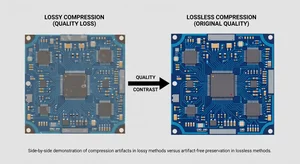
You know when you're trying to figure out compression options and you see terms like lossy and lossless thrown around? I used to just pick whatever seemed faster and hope for the best. Then I actually learned what these mean and realized I'd been making my GIFs look worse than they needed to.
The difference between lossy and lossless compression comes down to what happens to your original data. Both reduce file size, but they take completely different approaches. Understanding which one to use means you get better results without wasting time or quality.
Lossless Compression Keeps Everything
Lossless compression is exactly what it sounds like. You compress the file, but when you decompress it, you get back your original data perfectly. Nothing gets thrown away. It's like packing a suitcase really efficiently - everything's still there, just organized better.
For GIFs, lossless compression works by finding patterns in the data and representing them more efficiently. Maybe certain colors repeat across frames, or sections of the image don't change. The compressor identifies these patterns and encodes them in a more compact way.
The advantage is obvious. Your GIF looks identical before and after compression. Every pixel, every color, every frame stays exactly the same. If visual quality is critical and you can't afford any degradation, lossless is what you want.
But here's the catch. Lossless compression has limits. You might reduce your file size by 20 or 30 percent, sometimes a bit more if the GIF has lots of redundancy. But you're not going to compress a 10MB file down to 1MB with lossless compression. The data's still all there.
Lossy Compression Trades Quality for Size
Lossy compression takes a different approach. It permanently removes some data from your file to achieve better compression. You can't get that data back. The question is whether you actually need it.
Human perception isn't perfect. We don't notice subtle color variations or tiny details, especially in motion. Lossy compression exploits this by removing information that doesn't significantly impact what we see. The result looks almost the same, but the file is way smaller.
For GIFs specifically, lossy compression might reduce the color palette, remove dithering, or simplify frames. A GIF that uses 180 colors might get reduced to 128 without looking noticeably different. Those removed colors save data.
The compression ratios you can achieve with lossy methods are much higher. Getting a file down to 40 or 50 percent of its original size is pretty common. Push it further and you'll start seeing visible quality loss, but there's a sweet spot where the savings are huge and the visual impact is minimal.
When Quality Loss Becomes Visible
Not all lossy compression is created equal. Light lossy compression might be virtually undetectable. Aggressive lossy compression will make your GIF look terrible. You need to find the right balance for your specific use case.
Images with lots of fine detail or gradients don't compress as well with lossy methods. You'll see banding, posterization, or blurriness if you push the compression too hard. Simple graphics with flat colors handle aggressive compression much better.
Motion matters too. Fast moving animations can hide compression artifacts that would be obvious in slower, more detailed scenes. If your GIF has smooth pans across detailed images, lossy compression artifacts will be more noticeable than in a bouncing logo animation.
The original quality of your GIF also sets the baseline. If you start with a pristine, high quality source, you have more room to compress before quality becomes an issue. Starting with an already compressed or low quality GIF doesn't leave much room for further lossy compression.
Choosing Based on Your Use Case
Social media posts can usually handle lossy compression pretty well. People are scrolling fast, viewing on small screens, and they're not scrutinizing every pixel. The file size savings help your posts load quickly, which matters way more than perfect color fidelity.
Professional work or product demos might need lossless compression. If you're showcasing design work, demonstrating software interfaces, or creating technical documentation, you probably want pixel perfect accuracy. The larger file sizes are worth it for the quality preservation.
Websites fall somewhere in between. For blog posts and general content, lossy compression works great. For hero images or key visual elements, maybe lean towards lossless or very light lossy compression. It depends on how prominent the GIF is and how much quality matters.
Tools Handle This Differently
Some compression tools only offer one method or the other. Others let you choose. The best ones, like what you'll find with Cliptics compression, use smart algorithms that find the optimal balance automatically. They apply lossy techniques where they won't be noticed and preserve data where it matters.
Automatic compression tries to give you the best of both worlds. Maximum file size reduction with minimal perceptible quality loss. It's not perfect for every single GIF, but it works well for the majority of use cases without requiring you to understand all the technical details.
If you're really particular about quality, look for tools that let you adjust compression strength. That way you can dial in exactly how much quality you're willing to trade for file size. Preview before finalizing so you can see exactly what you're getting.
The Technical Details That Matter
Color quantization is one of the main lossy techniques for GIFs. Since GIFs use a 256 color palette anyway, reducing that further can save significant space. Going from 256 colors to 128 might be imperceptible depending on the image.
Frame differencing is another approach. Instead of storing complete frames, you only store what changes between frames. This works great for GIFs with static backgrounds or limited motion. Technically it can be done losslessly, but most setups use lossy methods for better compression.
Dithering adds noise to simulate more colors than the palette actually contains. It makes gradients look smoother but increases file size. Removing or reducing dithering is a common lossy technique. Sometimes the result looks better, sometimes worse. It depends on the image.
Practical File Size Comparisons
I ran some tests on typical GIFs. A 1920x1080 product demo GIF, about 150 frames, started at 8.7MB uncompressed. Lossless compression got it down to 6.9MB. That's a 20 percent reduction, which is decent.
The same GIF with lossy compression came out to 3.1MB with no visible quality loss to my eye. That's a 64 percent reduction from the original. For web use, that's a massive improvement with basically no downside.
Another test with a simple logo animation. Started at 2.3MB. Lossless got it to 1.9MB. Lossy brought it down to 0.7MB. The lossy version actually looked identical because the simple graphics didn't have subtle details to lose.
These aren't scientific benchmarks, but they show the practical difference. Lossy compression consistently delivers bigger file size savings, and for most GIFs, the quality impact is negligible if you're not compressing too aggressively.
What About Converting Formats
Sometimes the answer isn't compression at all, it's format conversion. MP4 or WebM video formats are way more efficient than GIF for longer animations. If your GIF is over 100 frames or several seconds long, converting to video might give you better results.
Modern browsers support video playback inline with autoplay and looping, so you can get the same effect as a GIF but with much smaller file sizes and better quality. The main downside is compatibility in places like messaging apps or certain platforms that expect actual GIF files.
Making the Call
For most practical uses, lossy compression is probably what you want. The file size savings are too significant to ignore, and the quality loss is minimal if you're using a decent compression tool. You get faster load times, lower bandwidth usage, and images that still look great.
Lossless makes sense when you absolutely cannot accept any quality degradation. Archival purposes, professional presentations, or situations where you might need to further edit the GIF later. In those cases, preserving every bit of data is worth the larger file sizes.
The good news is you don't always have to choose manually. Modern compression tools can analyze your GIF and apply the appropriate methods automatically. They'll use lossless techniques where it makes sense and lossy where it doesn't hurt quality. That's usually the best approach unless you have specific requirements.
Final Thoughts
Understanding lossy versus lossless compression isn't just technical trivia. It helps you make better decisions about how to optimize your GIFs for different purposes. You can balance file size, quality, and performance based on what actually matters for your specific use case.
Don't be afraid of lossy compression. The name sounds scary, like you're destroying your image, but in practice it's usually fine. Test it out, compare the results, and you'll probably find you can achieve much better file sizes without noticing any quality difference at all.