
GIF Optimization for Social Media: Instagram Stories | Cliptics
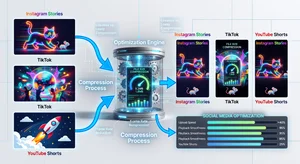
GIFs occupy a strange middle ground in digital content. They are too short to be videos, too animated to be images, and yet they have maintained their relevance across every major platform shift of the past decade. In 2026, the challenge is not whether to use GIFs but how to optimize them so they load fast, look sharp, and work within each platform's specific requirements.
Every platform handles GIFs differently. Instagram converts them to video. TikTok has specific format expectations. YouTube Shorts operates on video files. Understanding what each platform actually does with your file determines how you should prepare it.
How Each Platform Handles GIF Files
Instagram: Instagram does not display GIF files natively. When you upload a GIF to Instagram Stories, it gets automatically converted to an MP4 video. For feed posts, the GIF is converted and displayed as a video that loops. The platform optimizes the file itself, but your input quality still determines the output quality.
TikTok: TikTok does not accept GIF uploads directly. GIF content that goes viral on TikTok is typically exported as an MP4 video and uploaded as video content. The platform's algorithm treats it as a standard video. Vertical format (9:16) is required.
YouTube Shorts: YouTube Shorts requires MP4 video format. GIF content creators typically convert their loops to 15 to 60 second vertical videos before uploading.
This means that for TikTok and YouTube Shorts specifically, you often need to convert your GIF to MP4 before uploading.
File Size and Dimension Requirements
Understanding the technical requirements prevents upload failures and quality degradation.
Instagram:
- Stories: 1080 x 1920 pixels (9:16), maximum 15 seconds, file under 4GB
- Feed: 1080 x 1080 (square) or 1080 x 1350 (portrait), under 4GB
- GIFs are automatically converted, so provide the highest quality source
TikTok:
- Requires MP4 format (not GIF directly)
- Resolution: 1080 x 1920 (9:16 vertical)
- Under 500MB per file
- Duration: 3 seconds to 10 minutes
- Export your GIF as MP4 at 30fps minimum
YouTube Shorts:
- MP4 format required
- 1080 x 1920 (9:16 vertical)
- 60 seconds maximum duration
- Under 256GB file size
For GIFs you want to share directly via messaging, email, or embedding on websites, the standard guidance is to keep file size under 5MB for reliable loading and under 2MB for mobile-first audiences.
Compression Techniques That Preserve Quality
The tension in GIF optimization is between file size and visual quality. Heavy compression reduces file size but degrades the image. The goal is finding the optimal balance.
Cliptics GIF Compressor handles this balance automatically, analyzing your GIF and applying the most efficient compression while preserving visual quality above a readable threshold.
Several technical strategies contribute to smaller file sizes without visible degradation:
Reduce the color palette. GIFs support a maximum of 256 colors. Many GIFs use far fewer. Reducing the color palette from 256 to 128 or 64 colors can cut file size significantly with minimal visual impact, especially for simple animations with limited color ranges.
Lower the frame rate. 30fps is smooth. Most GIF animations do not require it. Dropping from 30fps to 15fps often cuts file size nearly in half with only a minor reduction in smoothness that most viewers do not notice.
Optimize dimensions. A GIF that displays at 400 pixels wide does not need source dimensions of 1200 pixels. Resize to the display dimensions before compressing.
Remove unnecessary frames. Some GIFs contain duplicate or near-duplicate frames. GIF optimization software can identify and remove redundant frames without changing the visible animation.
Resizing and Cropping for Platform Requirements
Platform-specific dimensions require resizing and sometimes cropping your GIF content.
Cliptics GIF Crop lets you crop animated GIFs to specific dimensions without breaking the animation. This is useful for adapting horizontal GIF content to vertical platform requirements.
Cliptics GIF Speed Changer adjusts playback speed, which is useful for making a GIF loop fit a specific time window or for matching the pacing of your content to platform norms.
Key dimension conversions to know:
- Horizontal (16:9) to Vertical (9:16): Crop to portrait orientation, keeping the most important content centered
- Square (1:1) to Vertical: Add bars or letterbox to fill 9:16 without cropping
- Any format to Stories: 1080 x 1920 is the target
Converting GIFs to Video for TikTok and Shorts
Since TikTok and YouTube Shorts require video uploads, you need a GIF to MP4 conversion step in your workflow.
The conversion process:
- Export your optimized GIF at the highest quality that fits your source
- Use a GIF to MP4 converter to produce a video file
- Ensure the output is 30fps minimum (use 60fps for smoother motion)
- Check dimensions match platform requirements (1080 x 1920 for vertical)
- Verify loop settings (most GIF content should loop smoothly in video format)
- Upload as standard video content
Cliptics GIF Frame Extractor can pull individual frames if you need to create a sequence of still images from your GIF content.
Creating Platform-Native GIF Content
Rather than adapting existing GIFs, creating content specifically designed for each platform's characteristics produces better results.
For Instagram Stories: Design at full vertical (1080 x 1920) from the start. Short loops (3 to 5 seconds) that are compelling enough to replay. Include motion that works well with sound off, since many viewers watch Stories muted.
For TikTok (as looping video): Design with TikTok's audience in mind. Fast cuts, strong visual hooks in the first second, content that invites sharing.
For embedding on websites and email: Horizontal format works better for most web contexts. Keep file size under 2MB for reliable email client rendering. Test in Outlook specifically, as some versions have limited GIF support.
Checking Your Work Before Publishing
Before uploading to any platform, run a final checklist:
- Does the GIF/video loop smoothly without a visible jump at the transition point?
- Is the file size within the platform's upload limits?
- Are the dimensions correct for the intended placement?
- Does the content read clearly at smaller sizes (phone screen preview)?
- If converting to video, is the frame rate smooth at 30fps minimum?
Optimizing GIFs for specific platforms takes a small amount of upfront work but produces noticeably better results in quality and loading speed. With the right tools, the process is fast enough to include in every publishing workflow.
Great animated content deserves to load fast and look sharp on every screen. The optimization is worth it.