
How to Run AI Models on Your Own Computer (2026 Guide) | Cliptics
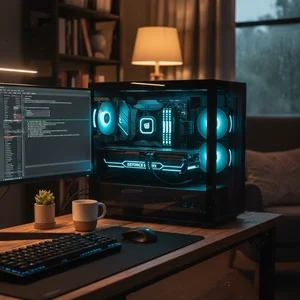
I ran my first AI model on my own laptop about a year ago. No cloud subscription. No API key. No internet connection at all, actually. Just my machine and a downloaded model file doing the whole thing right there on my desk.
It felt like the first time I installed Linux. That same "wait, I can just do this myself?" energy. And the tools have gotten so much better since then that I think 2026 is the year everyone should try it.
Here's the practical walkthrough. Everything you need to get an AI model running on your own computer today.
Why Run AI Locally?
Three reasons keep coming up.
Privacy is the big one. When you use ChatGPT or Claude through their websites, your conversations go to their servers. When you run a model locally, nothing leaves your machine. For anything sensitive (personal journals, business documents, medical questions), that matters a lot.
Cost is the second reason. API calls add up fast. If you're a developer making hundreds of requests a day, running locally means zero per token cost after the initial hardware investment.
Control is the third. You pick exactly which model runs. You can fine tune it on your own data. You can modify settings that cloud providers don't expose.
What Hardware Do You Actually Need?
This is where people get nervous, but it's more approachable than you'd think.
The minimum setup: 16 GB of RAM and any modern CPU. You can run smaller models (3B to 7B parameters) on just your CPU with no GPU at all. It won't be fast, but it works.
The sweet spot: 16 to 32 GB of RAM plus a GPU with 8 to 12 GB of VRAM. An NVIDIA RTX 3060 (12 GB) or RTX 4060 Ti (16 GB) handles 7B to 13B models comfortably at 20+ tokens per second.
The power user setup: 32 to 64 GB of RAM with an RTX 4090 (24 GB) or RTX 5090 (32 GB). This gets you into 30B and even quantized 70B model territory.
Mac users: Apple Silicon is genuinely excellent for this. The M2 Pro with 16 GB unified memory runs 7B models smoothly. An M3 Max with 64 GB handles some 70B models. The unified memory architecture means the GPU can access all your RAM directly, which is a big advantage.
The Three Tools You Should Know About
Three tools cover 95% of local AI use cases.
Ollama (Start Here)
Ollama is where I tell everyone to begin. It hit 52 million monthly downloads in Q1 2026, up from 100K just three years ago. There's a reason for that growth: it makes the whole process dead simple.
Installing Ollama takes one command:
On Mac or Linux, open your terminal and run: curl -fsSL https://ollama.com/install.sh | sh
On Windows, download the installer from ollama.com/download.
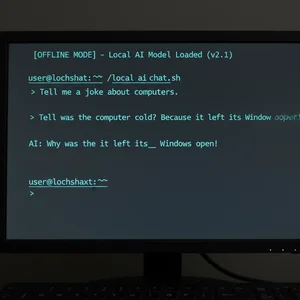
Running your first model takes one more command: ollama run llama3.3
That's it. Ollama downloads the model (about 4.9 GB for Llama 3.3 8B), sets everything up, and drops you into a chat interface right in your terminal. Five minutes total depending on your internet speed.
What makes Ollama special is the built in OpenAI compatible API server. Any application that works with the OpenAI API can point to your local Ollama instance instead. Tools, extensions, and scripts all just work without modification.
LM Studio (For Visual Learners)
If terminals make you uncomfortable, LM Studio gives you a full graphical interface. Browse models in a visual catalog, click to download, and start chatting through a clean UI. It also runs a local server on port 1234 with an OpenAI compatible API. Many developers use both: LM Studio for exploring models, Ollama for production workflows.
llama.cpp (For Maximum Control)
Both Ollama and LM Studio are built on llama.cpp under the hood. It's a C++ inference engine with the lowest level control over everything. Most people won't need it directly, but developers who want every last token per second will appreciate having it available.
Which Models Should You Try First?
The open source model landscape in 2026 is genuinely impressive:
Llama 3.3 8B is the best all around starter. Fast, quality responses across conversation, writing, and code. Runs on any setup with 8 GB of RAM.
Qwen 2.5 from Alibaba is arguably the strongest open source model available right now. The 7B version runs locally without issue, and the 72B version competes with GPT-4 on many benchmarks.
DeepSeek V3 excels at reasoning and coding tasks. If you want a local coding assistant, this is the one.
Mistral 7B handles multilingual tasks particularly well and follows instructions precisely.
Browse the full model library at ollama.com/library, which hosts over 100 pre quantized models ready to download.
The Quantization Trick That Makes It Possible
Here's what actually makes local AI practical. A full precision 70B parameter model would need about 140 GB of memory. Nobody has that in a consumer machine.
Quantization compresses the model by reducing precision. Instead of storing each parameter as a 16 bit number, you store it as a 4 bit number. The model gets roughly four times smaller. A 70B model drops to about 35 GB. Some quality is lost, but modern quantization techniques keep the difference surprisingly small.
Ollama and LM Studio handle this automatically. When you pull a model, you're getting a pre quantized version optimized for local hardware.

Common Problems and How to Fix Them
"My model is running really slowly." This usually means the model is too big for your GPU memory and is falling back to CPU inference. Try a smaller model or a more aggressively quantized version.
"I'm getting out of memory errors." Close other applications, especially browsers with many tabs. Chrome alone can eat several gigabytes.
"The responses aren't as good as ChatGPT." Local models are typically 7B to 13B parameters. ChatGPT uses much larger, heavily fine tuned models. You won't get identical quality, but for most practical tasks (drafting emails, summarizing documents, writing code), local models are genuinely useful.
What I Actually Use This For
I keep Ollama running in the background all day. Summarizing long documents without uploading them to anyone's servers. Writing first drafts of emails. Explaining code in unfamiliar codebases. Quick translations. Brainstorming when I need ideas fast.
It won't replace cloud AI for everything. But for the 80% of tasks that don't need the absolute best model, running locally is faster, free, and private.
Getting Started Today
If you take one thing from this article, let it be this: open your terminal, install Ollama, and run ollama run llama3.3. Five minutes. A fully functional AI assistant running entirely on your own hardware, with your data never leaving your machine.
The barrier to entry has never been lower. The models have never been better. And the privacy benefits are something cloud services simply cannot offer.
Your computer is more capable than you think. Give it a chance to prove it.