
Text to Speech for Educational Creators — Best Free Tools | Cliptics
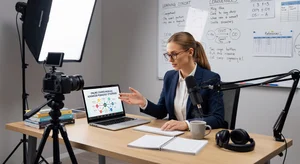
Teachers who create online content face a specific challenge that general YouTube creators don't. The content needs to be accurate, clear, and paced for learning, not for entertainment. That means delivering information in a way that a student who's genuinely trying to understand something can follow, not a viewer who's casually scrolling.
AI text to speech has become genuinely useful for this community in ways that go beyond convenience. For educators who have a lot to say but limited time or equipment to say it, TTS removes the recording bottleneck entirely. For students with visual impairments or reading difficulties, audio narration makes content accessible. And for multilingual classrooms, voice tools that handle multiple languages open up reach that wasn't practically possible before.
Here are the free tools that work best for educational creators and teachers, and how to use them effectively.
What Educational Content Needs from TTS
Educational narration has different requirements from entertainment or marketing content.
Clarity over energy. A fast-paced, enthusiastic voice works for YouTube Shorts. A measured, clear voice works better when students are trying to absorb and retain information. You want the voice to help thinking, not compete with it.
Correct pronunciation of technical vocabulary. Science courses have chemical names. History content has foreign proper nouns. Mathematics content has specific terminological conventions. AI voice tools vary significantly in how they handle specialized vocabulary.
Natural pacing for learning. Studies on audio learning consistently show that slightly slower-than-normal speaking rates improve comprehension and retention for new material. The optimal rate is around 150 to 160 words per minute for educational audio, compared to 175 to 200 in casual speech.
Consistent voice across a course. Students build a relationship with the "voice" of a course. Switching voices between modules is jarring in a way that's not about quality. It breaks the sense of continuity that helps learners feel grounded.
Best Free TTS Tools for Educators
Cliptics Text to Speech is a practical starting point for educational creators. Cliptics TTS is free, requires no account, handles long scripts well, and has clear voice options at appropriate pacing for learning content. For one-off lessons and smaller courses, this covers most needs without any setup friction.
The free unlimited text to speech option is specifically valuable for educators who are building out a substantial course with many lessons. Hitting character limits mid-production is disruptive. Unlimited output at free means you can build an entire course without rationing your TTS usage.
Google's TTS capabilities (accessible through various integrations and the free tier of Google Cloud) have some of the best technical vocabulary handling because the underlying language models are trained on an enormous range of text including academic and scientific content.
Balabolka is a desktop option worth mentioning for teachers who prefer not to use web tools. It's free, works offline, and can use multiple installed TTS voices. Less convenient than web tools but useful if you're concerned about uploading lesson scripts to cloud services.
Natural Reader has a free web tier with decent voice quality and a UI that's intuitive for non-technical educators. The free tier limits apply but it's useful for shorter lesson segments.
Practical Setup for Course Creation
If you're building a course, here's a workflow that works efficiently:
Write each lesson script as a complete document. Include your section breaks and any content pauses explicitly in the text (you can use ellipses or extra paragraph breaks to create pauses in most TTS tools).
Process each lesson script into audio. Name the audio files clearly ("module-01-lesson-03-introduction.mp3" rather than "audio1.mp3"). Your future self will thank you when you're editing or updating content six months later.
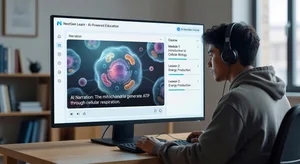
Pair the audio with screen recordings or slides. For most educational content, the ideal video format is narration audio over slides or screen recording. The instructor-on-camera approach adds production complexity that TTS removes from the equation entirely. Students generally care more about the quality of the content than whether they can see a face.
Add captions. This is critical for accessibility and is required by law in many educational contexts. Most video hosting platforms (YouTube, Vimeo, Coursera) auto-generate captions, but AI-generated voice tends to produce cleaner auto-captions than human voice because pronunciation is more consistent. Check the auto-generated captions and correct any errors, especially for technical terms.
The Accessibility Argument for Educational TTS
There's a dimension of TTS for educational content that's worth taking seriously beyond just production convenience.
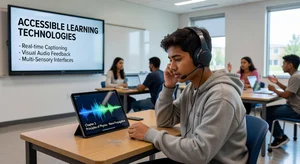
Students with dyslexia, visual impairments, or language processing differences benefit from consistent audio narration that they can replay, slow down, and use alongside written materials. If your course videos have clear, consistent AI narration, learners with these needs get something they often don't in traditional educational content.
Students who are non-native speakers of the instruction language benefit from clear AI voices that speak at consistent, controlled rates. Regional accents in human narration can be genuinely difficult for learners who are already processing content in a second language.
For educators who care about inclusive design, TTS narration is actually a feature, not a compromise.
Multi-Speaker for Engagement
One thing that makes extended educational content hard to engage with is the monotony of a single voice. Even when the content is interesting, 45 minutes of one voice with no variation can become numbing.
Cliptics multi-speaker TTS enables a Q&A or Socratic dialogue format within a single lesson. The main narrator explains concepts in one voice. Questions or prompts that pause for student reflection can be delivered in a distinct second voice. Examples or case studies can have their own voice.
This isn't about entertainment, it's about cognitive variety that helps learners stay alert through longer content. The voice changes function as mini-reset moments that prevent the brain from switching into passive listening mode.
Getting the Technical Terms Right
Every subject area has vocabulary that TTS handles imperfectly at first. Chemistry has compound names. Legal education has Latin phrases. Medicine has anatomical terminology. Music education has Italian terms.
The fix is to test-generate your script and listen for any mispronunciations. Most TTS systems let you either respell words phonetically in the input or use SSML tags to specify pronunciation for specific terms. Cliptics and similar tools support this.
Keep a running list of terms that your chosen TTS tool mispronounces, along with the phonetic spelling that gives you the right output. Once you've built this list for your subject area, future scripts get much faster to process.
Building Your Educational TTS Toolkit
The combination that works well for most educational creators: Cliptics for primary narration on full lessons (free, unlimited, consistent quality), a secondary tool with specialized voice options for specific content needs, and your video editing tool of choice for assembly.
This setup produces professional-quality educational content without recording equipment, without soundproofed rooms, and without the time investment of recording and editing your own voice. For educators who are experts in their subject and want to share that expertise widely, removing the production barrier is exactly what TTS was made for.