
Remove Background from Product Images for Shopify Free | Cliptics

Running a Shopify store means a lot of things need to go right. Good products, decent prices, solid descriptions. But honestly, the thing that trips up most new store owners is something they don't think enough about upfront: product photos with distracting backgrounds.
It's not that Shopify requires white backgrounds the way Amazon does. You have more creative freedom here. But there's a reason every high-converting Shopify store tends to have clean, consistent product imagery. It just looks more professional. And shoppers notice, even if they can't tell you exactly why.
This guide is going to walk you through how to remove backgrounds from your product images using free tools, step by step, so your Shopify listings look like you spent way more on photography than you actually did.
What You Actually Need Before You Start
Good news first: you don't need Photoshop, a paid subscription, or a fancy camera setup. What you do need is a decent photo of your product. Decent means reasonably good lighting, the product fills most of the frame, and it's reasonably sharp. Blurry photos won't be saved by background removal. But a decent phone photo in natural light? That's more than enough.
The free tool you'll be using is Cliptics Background Remover. It runs in your browser, no account needed, no watermarks on downloads, and it handles most product types really well. For anything you want to stay on your computer without uploading, there's also Cliptics in-browser background remover which processes locally.
Step 1: Take or Find Your Product Photo
You probably already have photos if you're setting up a Shopify store. But if you're shooting new ones, keep it simple. Natural light near a window is your best friend. A light-colored surface for the product to sit on. Keep the product centered, shoot from slightly above or straight on depending on what shows the item best.
No need for a white background at the shooting stage. The AI handles that in editing. In fact, sometimes contrast between the product and background actually helps the AI make a cleaner selection. A product photographed against a plain gray or light blue wall often comes out cleaner than one shot on a messy white sheet with shadows.
Step 2: Remove the Background
Go to remove background on Cliptics. Click upload or just drag your image into the drop zone. The AI processes it in a few seconds.
What you'll see is your product with the background gone, replaced by a transparent checkerboard pattern. That checkerboard is just showing you what's transparent. When you place this image on a white page or a colored background, the transparent areas become whatever's behind them.
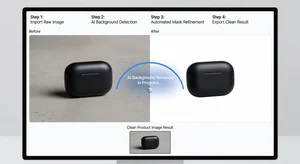
Check the edges of your product. Zoom in if the tool lets you. Most product types like bags, shoes, clothing, homeware, and electronics come out really cleanly. If you have something with super fine detail like mesh fabric or translucent materials, the result might not be perfect on every edge, but it's usually good enough for product listings.
Download as PNG. PNG preserves the transparent background, JPEG doesn't. Always PNG for product images when you're keeping transparency.
Step 3: Decide on Your Final Background
This is where you have a choice depending on what you want.
Option A: Keep it transparent. Upload the transparent PNG directly to Shopify. When Shopify displays it on a white page, the background becomes white automatically. This is clean and works well for most stores.
Option B: Add a white background. Use Cliptics to add a white background to create a proper white-background JPEG. This is better when you want guaranteed white, especially if your Shopify theme has any color variation in the product image display area.
Option C: Add a lifestyle or branded background. Drop the transparent product PNG into Canva or any image editor and place it onto a texture, room scene, or branded background. A lot of fashion and home goods stores do this to make their images feel more aspirational.
Step 4: Upload to Shopify and Optimize
In Shopify Admin, go to your product and upload your edited image. A few things to do while you're there.
Rename the file before uploading. Shopify uses the file name in the image URL, so something like "blue-leather-wallet-front.png" is better for SEO than "IMG_4382.png".
Add alt text. This matters for accessibility and search. Describe the product clearly: "Blue leather bifold wallet, front view, on white background." Shopify has an alt text field right on the image once it's uploaded.
If you have multiple photos per product, make sure the first image (the main one shoppers see in search results and collection pages) has the clean white or transparent background. Lifestyle images can be secondary photos.
Watermarks and What to Watch Out For
Some free tools add watermarks to downloads. Cliptics does not. But if you're ever trying another tool, download a test image first and check. A watermark on your product listing is worse than the original background.
Also watch for JPEG artifacts on edges. When a tool saves your transparent PNG as a JPEG by accident, the transparent areas get filled with white or gray, and the edges can look blurry or halos form around the product. Always check your download before publishing.
Building a Consistent Look Across Your Store
Here's something that separates good Shopify stores from great ones: consistency. If half your products have white backgrounds and half have gray, and some are photographed from different angles with different lighting, your store looks thrown together even if the products are excellent.
Pick one background style and use it for all your main product images. White is safest and most universal. Once you have the workflow down with Cliptics, removing backgrounds and adding the white becomes a 30-second task per photo. Do a batch session. Process 20 products at once. It's faster than it sounds.
You can also add watermarks or branding to your images if you want protection. Cliptics has a watermark tool that lets you add a logo or text overlay before you upload, which is useful if your products end up getting copied and re-listed by other sellers.
The main thing is to start. Pick one product, clean up its background, upload the new photo, and see how it looks. Then do the next one. A store with consistent, clean product photos just converts better. That's the whole point.