
White Background vs Transparent Background for Product | Cliptics
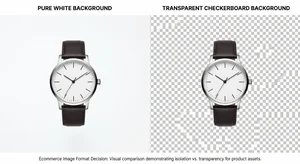
When you're editing product photos, there's a decision that comes up constantly: should you save as a white background image or keep it transparent? It sounds like a small technical question but it actually affects how your products look on different platforms, how you can reuse the images, and whether you'll run into format issues later.
This isn't a complicated decision once you understand what each option actually does and where each one makes sense. Let's break it down so you can make the right call for your specific situation.
What Each Format Actually Means
A white background image is exactly what it sounds like. Your product is sitting in front of a clean, pure white canvas. The background color is baked into the file. When you save as JPEG, this is what you get because JPEG doesn't support transparency at all. The white is there permanently.
A transparent background means the background has no color data. It's empty space. You can see this as the checkerboard pattern in editing tools. The file must be saved as PNG (or WebP) because JPEG can't hold transparency. When you place this image on any colored or textured surface, the transparent areas take on whatever is behind them.
Neither is better in an absolute sense. They serve different purposes and the right choice depends on where the image is going.
When White Background Is the Right Choice
Amazon is the clearest example. Amazon requires pure white backgrounds for main product images. There's no workaround. If you're selling on Amazon, you need white, specifically RGB 255, 255, 255. Using Cliptics to add a white background after removing the original gives you exactly that.
White background is also the right choice when you want a finished, complete image that doesn't depend on where it's placed. If you're emailing product photos to a wholesale buyer, sending images to a print catalog, or uploading somewhere that doesn't handle transparency well, white is safer.
Social media platforms like Facebook and some older Pinterest templates occasionally render transparent PNGs with black backgrounds instead of white. White background JPEG avoids that inconsistency entirely.

From a file size perspective, JPEG with white background also tends to be smaller than PNG with transparency, which matters if you're managing hundreds of product images and storage or loading speed is a concern.
When Transparent Background Is the Right Choice
Transparent PNG is the more flexible format. If you're going to use the product image in multiple contexts, a transparent version is your master file. You can always add white (or any other background) to a transparent PNG. You can't easily remove white from a JPEG without re-doing the background removal.
For Shopify, transparent PNGs work well because Shopify renders them on a white page anyway. The product appears to have a white background without you actually baking white in. And if your Shopify theme ever changes to a slightly off-white or light color, the transparent version adapts automatically.
If you're making marketing graphics, putting products in social posts, creating banner ads, or compositing products into lifestyle scenes, transparent is essential. You need to be able to drop the product onto different backgrounds without a white box around it.
Email newsletters are interesting. Most email clients render white backgrounds fine. But if your newsletter has a colored or dark background section, transparent PNG lets the product float naturally instead of sitting in a white rectangle.
Etsy, Depop, and similar marketplace platforms that allow more creative background choices benefit from transparent PNGs too, since you can place your product on a warm neutral, light wood, or branded color.
Getting Both Formats From One Source
The good news is you don't have to choose at the shooting stage. The workflow is:
Remove your background to get a transparent PNG using Cliptics Remove Background or the in-browser version. This transparent PNG is your master file.
From there, create two versions. Keep the transparent PNG for flexible use in graphics and design. Use Add White Background on a copy to make the Amazon and marketplace-compliant version.
This two-file approach takes about 30 extra seconds and saves you from having to re-edit later. A lot of product photographers actually organize their folders with a "transparent" subfolder and a "white-bg" subfolder for exactly this reason.
The Format Quality Question
One thing photographers ask about is whether transparent PNG loses image quality compared to JPEG. PNG is lossless, which means no quality degradation from compression. JPEG is lossy, meaning some detail gets removed during compression to reduce file size.
For product photos, PNG is actually higher quality. But the files are larger. For web use, both are fine. For print, PNG is safer.
If you need a transparent image for specific use cases, PNG is your only real option. If you need the smallest file size and aren't placing the image on anything with a non-white background, JPEG with white background is perfectly fine.
Quick Reference
Use white background when selling on Amazon, sending to print catalogs, distributing to buyers who might have display issues with transparency, or when you want the smallest file size.
Use transparent background when creating marketing graphics, using products in social media posts or newsletters with colored areas, selling on platforms that let you set custom backgrounds, or when you want one master file that can adapt to anything.
When in doubt, make both. The extra step is minimal and the flexibility is worth it. Your transparent master file is the asset that actually protects your investment in photography, because it can be repurposed indefinitely.