The first AI video I generated was technically impressive and completely useless.
A camera slowly drifting through a forest. Trees moving slightly. Light filtering through leaves. Beautiful. But I had zero control over what the camera did. It just... wandered. The AI decided the path.
That's when I realized AI video has a motion problem. You can describe what's in the scene pretty well now. But controlling how things move? That's still the hard part.
Here's what I've learned about actually controlling motion in AI video, using both keyframe methods and text-based prompting.
Two Approaches to Motion Control#
AI video generation splits into two fundamentally different systems.
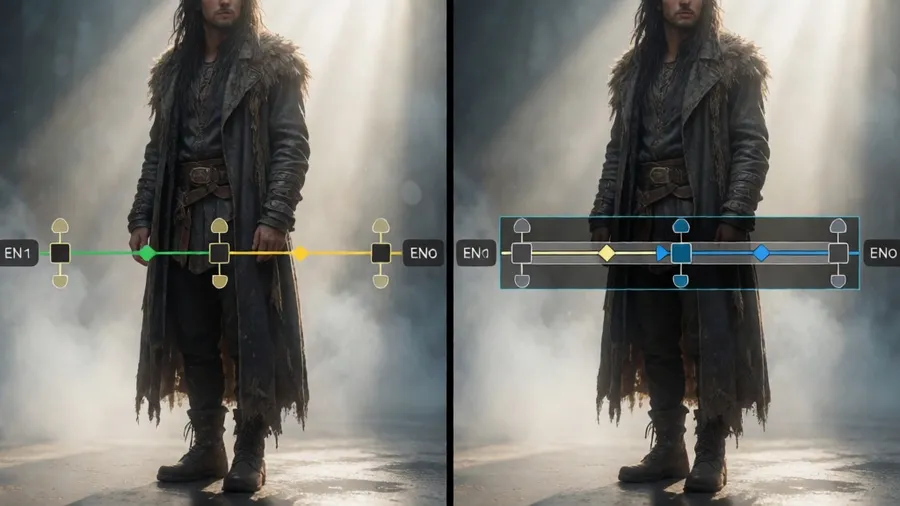
Keyframe-based: You provide a start image and an end image. The AI interpolates the frames in between, creating motion that transitions from the first image to the second.
Text-based: You write a prompt describing the motion, and the AI generates video from scratch based on that description.
Each has different strengths and completely different workflows. Understanding when to use which matters more than mastering either one.
How Keyframe Interpolation Works#
Start-end keyframe systems are the most reliable way to control motion right now. Not the most flexible. But the most predictable.
You create or upload two images. The first frame shows where things start. The last frame shows where they end. The AI fills in the middle, creating smooth motion between them.
This gives you precise control over the beginning and end states. Everything in between is interpolation.
Example: I wanted a product shot where the camera orbits around a watch. In keyframe mode, I generated two images. One showing the watch from the front. One showing it from the back. Same lighting, same background, slightly rotated position.
The AI interpolated the rotation, creating a smooth orbital motion. Exactly what I wanted because I controlled both ends.
The key insight: you're not describing motion. You're defining endpoints and letting the AI solve for the path between them.
Prompting for Keyframe Pairs#
Creating good keyframe pairs requires thinking about what can smoothly interpolate.
Small changes work better than big ones. Moving the camera 30 degrees works. Jumping 180 degrees creates weird warping in the middle frames.
Keep the composition consistent. If your subject is centered in the first frame, keep it centered in the last frame. Maintain consistent lighting. Same focal length. The AI can handle gradual transitions, not complete scene changes.
Good keyframe pair: "Close-up of a coffee cup on a table, shot from slightly left" → "Same coffee cup from slightly right, steam rising"
The camera position shifted. Steam was added. But the core composition stayed stable.
Bad keyframe pair: "Coffee cup in morning light" → "Coffee cup at night with different background"
Too many changes. The lighting shift, background change, and time-of-day difference will create muddy interpolation.
Text-to-Video Motion Vocabulary#
Text-based video generation requires describing motion with words. This is harder than it sounds because motion is fundamentally visual.
Camera movements you can describe:
Pan: Horizontal rotation. "Camera pans left to right across the landscape"
Tilt: Vertical rotation. "Camera tilts up from the floor to the ceiling"
Dolly/Track: Camera moves physically closer or farther. "Camera slowly pushes in on the subject's face"
Orbit: Camera circles around the subject. "Camera orbits around the product"
Crane: Camera moves up or down while pointing at the subject. "Camera cranes up revealing the full building"
Zoom: Lens zooms in or out (different from dolly, creates different perspective). "Slow zoom out from close-up to wide shot"
Subject movements:
"Walking toward camera," "turning to face the viewer," "hand reaching for object," "hair blowing in wind," "fabric flowing."
Be specific about speed and quality of motion. "Slow smooth pan" versus "quick jerky pan" creates different results.
What Text-to-Video Gets Wrong#
Even with clear motion vocabulary, text-based systems struggle with consistency and physical plausibility.
The AI might start a pan left but drift in direction halfway through. Objects might deform or warp during movement. Parallax often fails (foreground and background don't move at appropriate relative speeds).
Motion blur is usually wrong or absent. Real camera motion creates natural blur. AI video either skips it entirely or applies it incorrectly.
Complex motions fail. "Camera orbits while dollying in while tilting up" is too many simultaneous movements. Pick one or two, max.
Subject motion and camera motion together confuses models. "Person walking left while camera pans right" often results in weird drifting or inconsistent motion.
The limitations force you to simplify. Which honestly makes for better video anyway. One clear motion beats three competing ones.
Combining Approaches#
The most control comes from mixing methods.
Use text-to-video to generate a starting frame with the motion and composition you want. Then use that as the first keyframe and create a second keyframe with the end position. Run keyframe interpolation on the pair.
This gives you the creative freedom of text prompting for the initial concept and the precision of keyframes for the motion.
Example workflow:
- Text prompt: "Cinematic shot of a vintage car on an empty desert highway, shot from low angle, golden hour light"
- Generate several options, pick the best frame
- Create second keyframe by modifying the first: same scene but camera position moved to the right
- Interpolate between them for smooth motion
This is more work than pure text-to-video, but the results are significantly more controlled.
Temporal Consistency Techniques#
Keeping objects consistent across frames is the hardest unsolved problem in AI video.
Faces morph. Text shifts. Objects drift. The AI treats each frame somewhat independently, so details change slightly frame to frame. At 24 frames per second, those slight changes create flickering and morphing.
Keyframe methods help by anchoring both ends. The interpolation has targets to hit, which reduces drift.
For text-to-video, shorter clips are more consistent than longer ones. A 2-second clip might stay coherent. A 10-second clip will probably have visible morphing.
Describing static elements helps. "Background remains static while subject moves" tells the model what should stay consistent.
Higher-end models (Runway Gen-3, Pika 1.5, Kling) have better temporal consistency, but none are perfect yet.
Practical Motion Prompting#
Here's the structure I use for text-to-video prompts focused on motion:
[Scene description], [camera movement], [subject movement], [speed and quality], [duration note]
Example: "A woman walks through a sunlit garden filled with flowers. Camera dollys forward following her from behind. She walks at a leisurely pace. Smooth steady camera motion. 3-second clip."
That prompt gives the AI:
- What's in the scene
- How the camera moves
- How the subject moves
- The quality of motion
- How long it should be
Compare to a motion-less prompt: "A woman in a sunlit garden with flowers"
The second might generate a lovely image that barely moves. The first creates actual video.
When to Use Which Method#
Use keyframes when:
- You know exactly what you want the start and end to look like
- You need reliable, repeatable motion
- You're creating product videos, architectural flythrough, or anything with precise requirements
- You have existing images to animate
Use text-to-video when:
- You're exploring ideas and don't have a fixed vision
- You want the AI to surprise you with motion choices
- You're creating organic, natural movement like people, nature, or atmospheric shots
- You need to generate from scratch without existing images
Combine both when:
- You want creative control and precision
- You're willing to spend more time for better results
- You need specific motion but also want to iterate on the concept
Common Motion Failures#
Physics violations: Objects floating, incorrect gravity, movement that defies mass and inertia. Fix by being explicit: "subject affected by gravity," "realistic physics."
Inconsistent speed: Motion starts fast and slows randomly, or vice versa. Fix by specifying: "constant smooth speed" or "gradually accelerating."
Direction drift: Camera starts panning left but curves off-path. Fix with shorter clips and clearer directional language.
Morphing subjects: Faces or objects change subtly between frames. Fix with keyframe anchoring or shorter duration.
The Future Is Getting Better Fast#
Six months ago, none of this worked well. Now, keyframe interpolation is pretty reliable. Text-to-video is improving monthly.
Models are getting better at understanding complex motion descriptions. Temporal consistency is slowly improving. We're not at the point where you can describe any motion and get it perfectly, but we're closer than ever.
The gap between what's possible and what's easy is shrinking.
Wrapping Up#
Control motion in AI video by choosing the right method. Keyframe interpolation gives you precision through start and end images. Text-to-video gives you flexibility through motion vocabulary. Use camera movement terms clearly. Keep motions simple. Shorter clips are more consistent. Combine methods when you need both creative freedom and control.
Motion is still the hardest part of AI video. But it's solvable if you understand the tools.